How to Connect Your Bitcoin Lightning Wallet to tiankii
How to connect your Bitcoin Lightning wallet to tiankii
Connecting a wallet is the first thing you do in the tiankii Merchant Dashboard, and it is the step that makes everything else possible: points of sale, payment links and e-commerce connectors send bitcoin payments to the wallet you connect here.
Your customers' bitcoin payments go straight to your wallet; tiankii never holds them. We do not create a wallet for you, we do not take custody of your bitcoin, and there is no tiankii balance of your customers' payments to withdraw from. You connect the wallet you already use, and every bitcoin payment your customers make lands directly in that wallet; Lightning payments usually arrive in seconds. You keep control of your bitcoin the whole time.

This guide is the starting point. Once you know which wallet you want to use, follow the step-by-step article for that specific wallet — each one has its own screenshots.
Which wallets you can connect today
Connect Wallet opens a fixed list. The screen title is Connect your wallet. A card you can use has a Connect button. Bitcoin Onchain and Lightning say Soon and cannot be connected. These are the cards this guide covers:
| Wallet | Best for | What you will need |
|---|---|---|
| Strike | Merchants in countries where Strike operates who already use it | Your Strike username. The form asks only for that |
| Blink | Merchants already using Blink at the counter | Your Blink username. The form field is labeled Beach wallet username |
| LNbits | Merchants running their own LNbits instance or using a hosted one | Your LNbits instance URL and the invoice key of the wallet |
| Lightning Address | On the catalog, and in production the card does not open a form. The screen says: This payment method is not available on this screen yet. Please contact support if you need it enabled. | Not a form on this screen in production |
| Chivo | Merchants in El Salvador. The screen shows two cards, both with Connect: Chivo BTC collects bitcoin to your Chivo account, and Chivo USD collects dollars, not bitcoin | The username and password of a Chivo point-of-sale user, which you create in Chivo's business portal. Do not use the login of your Chivo app |
| *Spark | Merchants who already use a Spark wallet | Your Spark Address or Spark public key |
The same screen also lists N1co and Stripe under Credit Card. Card payments are not bitcoin and do not go to the Lightning wallet you connect here; this guide does not cover them. Cash is not on the list.
Pick a card that opens a form. Bitcoin Onchain and Lightning say Soon. Lightning Address is listed and, in production, stops at the message above.
Before you start
- A tiankii account. If you do not have one yet, create it with your email, your phone number, or a Google, X or Microsoft account.
- The wallet you plan to use, installed and working, with the credential from the table above at hand.
- The job is connecting one method from the list on screen.
Connect your wallet, step by step
- Open the Merchant Dashboard at https://pay.tiankii.com/ and log in.
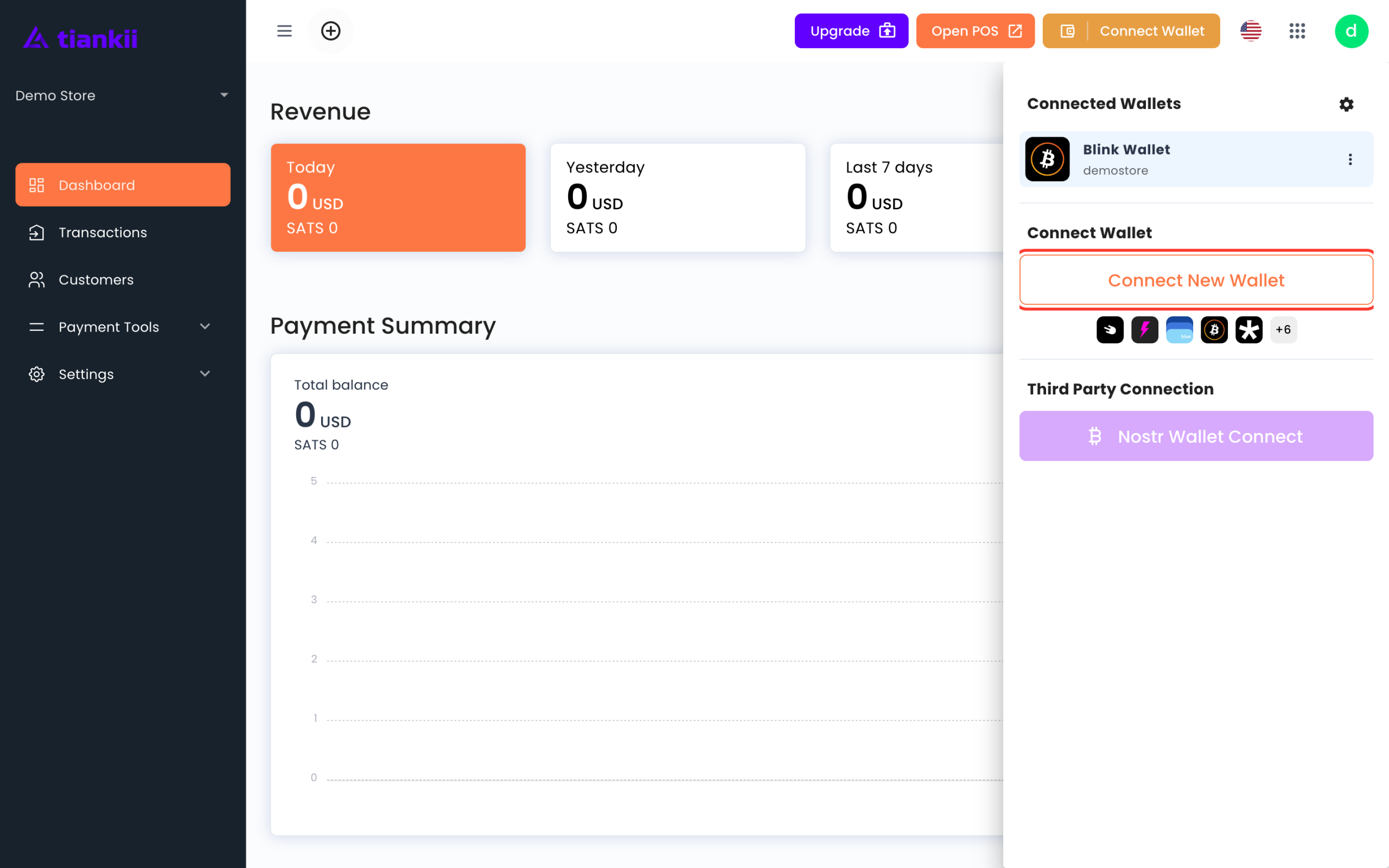
- Use the header button Connect Wallet. The panel is Connected Wallets, and Connect New Wallet opens the catalog. The screen title is Connect your wallet. The same catalog is the tab Connect Your Wallet inside Store Settings. Quick Links → Connect My Wallet opens Store Settings on General Settings; choose the Connect Your Wallet tab from there. The sidebar has no wallet item.
- The list has three filters: All, Bitcoin and Credit Card.
- Find your wallet in the list and click Connect on its card.
- Fill in what the next screen asks for. It depends on the wallet: a username, an address, a key or an instance URL. Chivo also asks for a password; see the table above. Lightning Address does not open that form in production.
- The Dashboard checks the wallet as soon as you send the credential.
- When the check passes, the wallet appears as connected, with its alias visible. That alias is what you will see in your points of sale and in Transactions.
That is it. Your account can now generate charges, and every bitcoin payment settles straight into the wallet you just connected.
Check that it really works before your first customer
A connected wallet is not the same as a wallet that has received money. Do not find out at the counter with a customer waiting. Run one test charge:
- Open the point of sale the store already has. A new store includes POS Sales 1 on Main Branch.
- Charge a very small amount to yourself — 100 sats is a few cents.
- Pay the QR from your own phone.
- Confirm the sats arrived in your wallet app, not just on the tiankii screen.
A test charge is real money moving from your wallet to your wallet, and tiankii records it like any other payment.
What to do when the connection fails
| What you see | What it usually means | What to do |
|---|---|---|
| The Dashboard rejects the credential | The key was copied with a space, a line break or a missing character | Copy it again from the wallet, paste it into a plain text field first to confirm it is clean, then paste it into tiankii |
| The key is valid but the check fails | The key does not have permission to create invoices | Generate a new key in your wallet that can create invoices and nothing more. In LNbits that is the Invoice/read key, never the Admin key |
| Everything connects but nothing arrives | You are looking at the wrong wallet or the wrong account inside it | Confirm the alias shown in tiankii is the same account you are checking in your wallet app |
Changing or removing a wallet later
You are not locked in. Open Connect Wallet, disconnect the current wallet and connect a different one. Your points of sale, payment links, branches and users stay exactly as they are — only the destination of new payments changes.
Bitcoin payments that already settled are in your old wallet and stay there; disconnecting it does not move them. Make sure you still have access to that wallet before you disconnect it.
Frequently asked questions
Does tiankii hold my customers' bitcoin payments?
No. Bitcoin payments go from your customer to your wallet. tiankii holds no balance of those payments and there is nothing to withdraw. The prepaid credit balance you use to pay for your plan is a separate thing and is not mixed with your payments.
No. Bitcoin payments go from your customer to your wallet. tiankii holds no balance of those payments and there is nothing to withdraw. The prepaid credit balance you use to pay for your plan is a separate thing and is not mixed with your payments.
Can I connect more than one wallet?
Each store receives its bitcoin payments in one connected wallet at a time. If you run several branches or several stores, each one can point at a different wallet.
Each store receives its bitcoin payments in one connected wallet at a time. If you run several branches or several stores, each one can point at a different wallet.
What happens if my wallet is down during business hours?
If tiankii cannot reach your wallet, the charge is not created and no payment moves. Bitcoin payments that were already generated and paid still land in your wallet. A tiankii outage does not affect the bitcoin already in your wallet, because tiankii does not hold it.
If tiankii cannot reach your wallet, the charge is not created and no payment moves. Bitcoin payments that were already generated and paid still land in your wallet. A tiankii outage does not affect the bitcoin already in your wallet, because tiankii does not hold it.
Do my customers need a tiankii account?
No. They pay from their own wallet or app. No tiankii account and nothing from tiankii to install.
No. They pay from their own wallet or app. No tiankii account and nothing from tiankii to install.
Next steps
- Take your first charge and confirm the bitcoin payment lands in your wallet.
- Learn when to use a QR and when to use tap-to-pay at the counter.
- Open Transactions so you know what came in and from which point of sale.