QR or Tap-to-Pay NFC: Which One to Use at Your Counter
QR or tap-to-pay NFC: which one to use at your counter
The charge screen on tiankii POS shows a QR. NFC is not a choice on that screen. It is a switch on the point of sale, and it reads a Boltcard in Chrome on Android. Either way, your customers' bitcoin payments go to the wallet you connected.
You do not need a special reader, and you do not need cards from tiankii to accept tap. The switch runs in Chrome on Android. The charge screen is the QR.
This guide tells you which one to reach for, and why.
The short answer
| Situation | Use |
|---|---|
| The customer scans | The QR on the charge screen. The screen is titled Pay with and includes Refresh. |
| A Boltcard, in Chrome on Android | The switch Enable NFC Payment on that point of sale. It is not a button on the charge screen. |
| You are not sure | Use the QR. It is the screen every charge shows. |

QR is the universal option and the one to learn first. Tap is the speed upgrade for customers who come back.
How the QR flow works
- You enter the amount at the point of sale and press Charge.
- A QR code appears on your screen.
- You turn the screen towards the customer.
- They open a Lightning wallet, scan, and confirm.
- The screen stays on Pay with, with the QR and Refresh. A paid charge shows as PAID or COMPLETE in Transactions.
What it needs: a screen your customer can see, and a customer with a Lightning wallet on their phone. Nothing else. No app of ours, no account with us, no pairing.
If the camera will not lock on, wipe the screen and raise the brightness. The customer scans from inside a Lightning wallet.
What the charge screen shows
On tiankii POS the path is New Payment, the keypad, then Charge. The next screen is titled Pay with. It shows Bitcoin, the QR, the amount in USD and in sats, Payment Key / Lightning Address, and Refresh. With one wallet connected, Bitcoin does not offer another method.
This guide does not state how long that QR stays on screen. The screen does not show a countdown. If the customer has not paid, open the charge in Transactions. An unpaid charge offers Recheck and Cancel Invoice.
Where NFC is
NFC is not a choice while you charge. It is set per point of sale.
- Open Payment Tools, then Payment Terminals.
- Open the terminal settings. The title is Update Point of Sale.
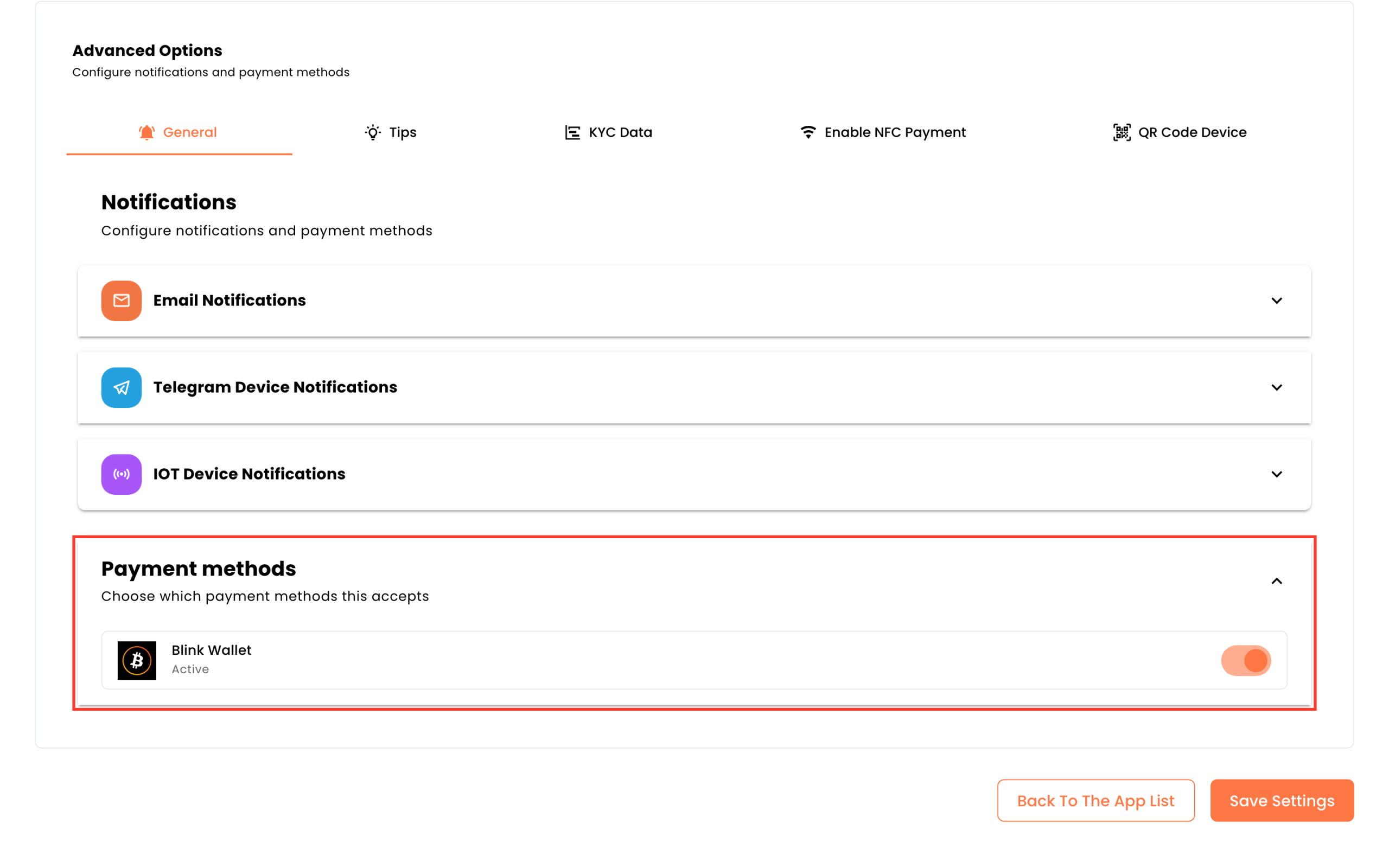
- Open Advanced Options. The tabs are General, Tips, KYC Data, Enable NFC Payment and QR Code Device.
- Enable NFC Payment is the switch for that terminal.
The switch reads a Boltcard, and it runs in Chrome on Android. The text under the switch mentions payment cards and mobile devices; the switch reads Boltcards only. QR/Share on this screen is the code that opens the terminal. It is not the charge QR.
You do not need a card or a reader from tiankii to accept it.
One charge, one customer
Each charge is a single payment request for a single amount. It is paid once, and then it is finished — by QR or by tap, it does not matter. This matters in two everyday situations:
- Splitting a bill. Create one charge per person for their share, rather than one charge everyone pays. A charge cannot be paid twice.
- A customer who changes their mind about the amount. Do not leave the unpaid charge open and create another for the same customer. Use Cancel Invoice on the unpaid charge, then create the correct one.
What is identical either way
- The bitcoin payment goes directly to the wallet you connected. tiankii never holds it.
- Settlement takes seconds, and there is no chargeback window afterwards.
- A paid charge shows as PAID or COMPLETE in Transactions. The bitcoin payment is in the same wallet.
- Your customer needs no tiankii account and installs nothing of ours.
The payment method is a detail of the ten seconds at the counter. It changes nothing about where the bitcoin payment ends up or who controls it.
Frequently asked questions
Do I have to choose NFC at the counter?
No. The charge screen shows the QR. NFC is the switch on the point of sale, not a button on that screen.
No. The charge screen shows the QR. NFC is the switch on the point of sale, not a button on that screen.
Does tap cost more than QR?
No. The payment method does not change what you pay to use tiankii.
No. The payment method does not change what you pay to use tiankii.
Do I need a reader or cards from tiankii?
No. You do not need a card or a reader from tiankii to accept it. A Boltcard spends from the wallet it is linked to. The switch reads a Boltcard in Chrome on Android. The charge screen shows the QR.
No. You do not need a card or a reader from tiankii to accept it. A Boltcard spends from the wallet it is linked to. The switch reads a Boltcard in Chrome on Android. The charge screen shows the QR.
Can I hand a Boltcard to my customers?
This guide covers accepting the Boltcards your customers already have. If you plan to hand out cards, each card must spend from a wallet your customer controls. A card that spends from a wallet you control means you are holding your customers' money, which is a different activity with its own obligations — contact tiankii support before you do it.
This guide covers accepting the Boltcards your customers already have. If you plan to hand out cards, each card must spend from a wallet your customer controls. A card that spends from a wallet you control means you are holding your customers' money, which is a different activity with its own obligations — contact tiankii support before you do it.
Which is more secure?
Both authorise a specific amount for a specific charge, and both settle the bitcoin payment to your wallet directly. Neither exposes your wallet credentials to the customer.
Both authorise a specific amount for a specific charge, and both settle the bitcoin payment to your wallet directly. Neither exposes your wallet credentials to the customer.
Next steps
- Open the charge screen on the counter device and confirm you see Pay with and Refresh.
- Open Transactions to see which terminal took the charge.
- Know what to check when a payment does not show up.