Sales Reports: Reading Your Bitcoin Revenue in the Merchant Dashboard
Sales reports: reading your Bitcoin revenue in the Merchant Dashboard
Your wallet tells you how many sats you have. It does not tell you which branch earned them, which till was busiest, or what you took on Saturday compared with last Saturday. That is what Transactions and the Dashboard are for. There is no Reports screen.
This is the difference between a wallet and a console. A wallet receives money. A console tells you how the business is doing.
Where to find the payments
- Log in to the Merchant Dashboard at https://pay.tiankii.com/.
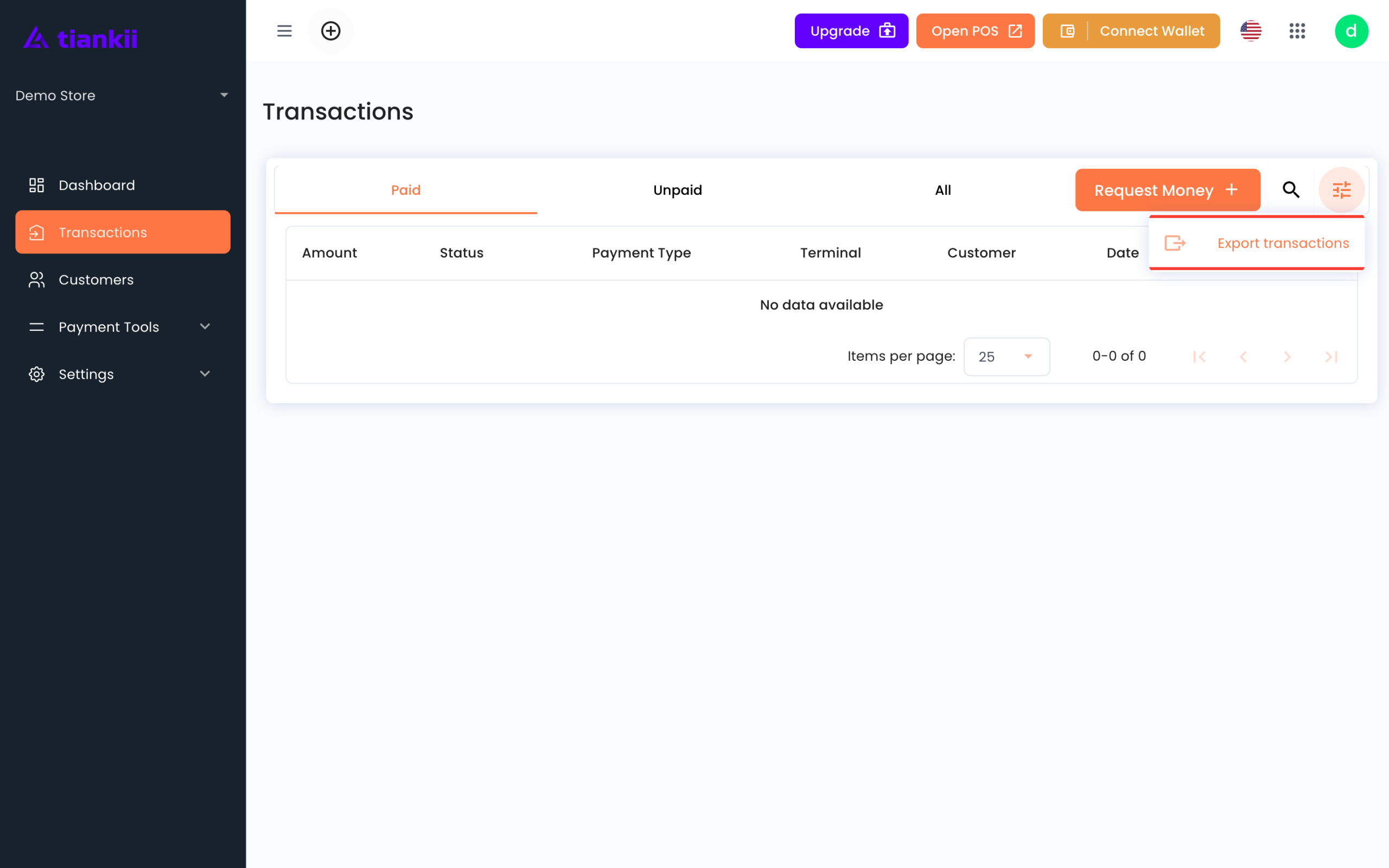
- In the left panel you have Dashboard, Transactions, Customers, Payment Tools and Settings. Payment Tools opens Invoicing, Payment Terminals, Integrations and My Bitcoin Place. Settings opens General and Products.
- Transactions is the list of individual payments. The filters are Paid, Unpaid and All. The columns are Amount, Status, Payment Type, Terminal, Customer, Date and Actions. Actions includes View. The tune icon opens Export transactions, which opens Download Activity. The panel has no Reports item and no Branches item. A branch is a group on Payment Terminals. Dashboard is the home screen.

Transactions reads from the payments tiankii processed for you. They are not a view of your wallet balance — your wallet may also hold money from other sources, and Transactions does not show it. It only reports what came in through your points of sale, links and connectors.
What the Dashboard shows
The Dashboard is the home screen. It shows Revenue for Today, Yesterday, Last 7 days and Last 30 days; Payment Summary; Total Sales by Terminal; Sales Summary with Tips, Total Refunded, Average Sale and Max Sale; Recent Payments; and Top Items by Sale.
The invoice detail is titled Invoice Information. It includes Status, Payment Method, Payment Type, Currency, Amount, Tip, Created Date, App Name and Branch. An unpaid charge offers Recheck, Cancel Invoice, Checkout and Email. A paid charge offers Checkout and Email.
Sats and your local currency
Every payment is recorded in sats, because that is what actually moved, and also in your local currency at the rate of the moment the charge was created.
Both numbers are true and they answer different questions:
- The sats figure is what is in your wallet. It does not change afterwards, whatever the price does.
- The local-currency figure is what you charged the customer. It is the number that reconciles against your till and your invoices.
For accounting, use the local-currency figure recorded at the time of sale — that is the price the customer agreed to pay. Recalculating old sales at today's rate produces a number that never existed and will not match your books. Your accountant has the final word on how to book it.
Where a branch shows up
Every terminal belongs to a branch. A new store has Main Branch and POS Sales 1. Create Branch adds a branch, not a terminal. The invoice detail includes Branch. The Dashboard splits sales with Total Sales by Terminal. There is no separate branch report.
The Transactions list
Transactions is the payment-by-payment view. Use it when you have a specific question rather than a general one — a customer disputing an amount, a till that does not reconcile, a payment somebody swears they made.
Open View on the row when you need the invoice detail, including Branch, Amount, Currency and Tip.
Exporting your data
From Transactions, the tune icon opens Export transactions. That screen is Download Activity. You set Timeframe, Payments, Type and an optional Address. The screen says a download link will be delivered to the address it shows, and the button is Send. The file does not download at that moment.
Send one export on a calm day, so you know the columns before a deadline. The link arrives by email. It is not an instant download.
What is deliberately not in your reports
- A charge nobody paid. It is not a completed sale. In Transactions the filter is Unpaid. On tiankii POS the same charge is Pending.
- Money that reached your wallet from elsewhere. If somebody pays your wallet's Lightning Address directly, outside a tiankii charge, that payment is not a tiankii charge and does not appear here.
When the numbers do not match your wallet
This is the most common question, and it almost always has the same answer. Work through these in order:
- Are you comparing the same period? Your wallet shows a running balance. Dashboard Revenue is split into Today, Yesterday, Last 7 days and Last 30 days. A wallet balance is a running total, so the two match only inside the window you are looking at, and only for payments that came through tiankii.
- Did money arrive from outside tiankii? Direct bitcoin payments to your wallet do not appear in Transactions, because we never saw them.
- Have you spent from the wallet? Transactions and the Dashboard count what came in. They do not track what you sent out afterwards.
- Are you looking at the right wallet? Check the alias shown in Connect Wallet matches the account you are looking at.
- Did you change wallets during the period? Bitcoin payments settled to whichever wallet was connected at the time. Transactions lists the charges. Each charge settled to the wallet that was connected at the time, and only that wallet holds that part.
If you have been through all five and the numbers still disagree, export the period and send us the file along with what you expected to see. A concrete gap is quick to explain; a general feeling that something is off is not.
Frequently asked questions
Can tiankii move money out of my wallet?
tiankii uses the credential you connect to create charges, not to send payments out of your wallet, and Transactions is a read-only view of the payments it processed. Where your wallet lets you choose, connect a key with invoice or receive permission only: a key that can only receive cannot spend.
tiankii uses the credential you connect to create charges, not to send payments out of your wallet, and Transactions is a read-only view of the payments it processed. Where your wallet lets you choose, connect a key with invoice or receive permission only: a key that can only receive cannot spend.
Does Transactions keep working if my account reaches its plan limit?
Yes. When you reach your plan's limit, what pauses is creating new charges; Transactions, the export and your history stay available.
Yes. When you reach your plan's limit, what pauses is creating new charges; Transactions, the export and your history stay available.
How far back does the history go?
To your first payment. Export your history regularly so you always have your own copy.
To your first payment. Export your history regularly so you always have your own copy.
Can staff see the reports?
Staff users work the point of sale. Full reporting is for the account owner and the users you give that access to.
Staff users work the point of sale. Full reporting is for the account owner and the users you give that access to.
Next steps
- Create one branch per real location before you take much volume — retrofitting the split later is harder than doing it now.
- Export one month and check the columns work for your accountant.
- Know what to check when a payment does not show up.