The Payment Didn't Arrive: What to Check, Step by Step
The payment didn't arrive: what to check, step by step
There is a customer in front of you, the screen did not say what you expected. This guide is written for that moment first, and for the calmer investigation afterwards second.

The one rule that matters: never create a second charge because you are unsure whether the first one was paid. That is how customers get charged twice. Read the screen — it tells you whether money moved.
First: read what the screen actually says
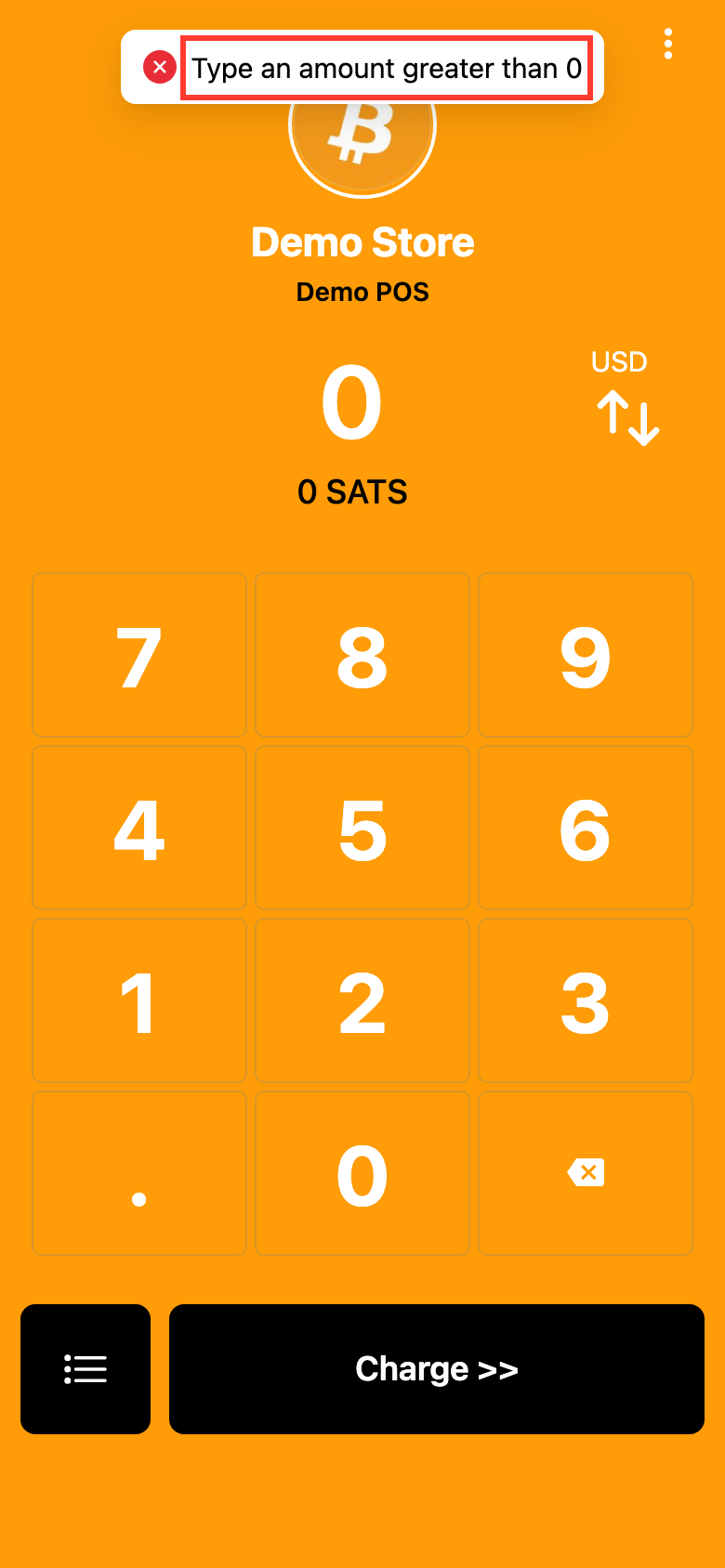
Every outcome has its own screen, and each one starts by answering the only question that matters at the counter: did the customer pay or not?
| Screen | Did money move? | Do this now |
|---|---|---|
| Pending on tiankii POS | The charge is on today's list. The same charge is NEW in Transactions and new on the detail. | You do not know from the POS list alone that sats arrived. Check the wallet, then open the charge. An unpaid charge offers Recheck and Cancel Invoice. |
| PAID or COMPLETE in Transactions | Transactions has it as paid. The detail shows paid. | Confirm the sats in the wallet. |
| Type an amount greater than 0 | No. The keypad was at 0. | Enter an amount greater than 0. |
| Error creating — No payment method is ready for this charge. Check the store setup. | No charge was created. | Connect a wallet, then charge again. |
Check, in order
The customer says they paid and your screen disagrees. Work through this in order and stop at the first one that explains it.
1. Is the payment in your wallet?
Open your wallet app — not the tiankii screen — and look at incoming transactions for the last few minutes. Your wallet is the source of truth, because that is where the money actually goes. If the sats are there, you have been paid, whatever any screen said.
2. Is it in Transactions?
Go to Transactions in the Merchant Dashboard. Find the time, the point of sale and the amount. If the payment is listed as completed, tiankii saw it settle.
If it is in your wallet but not in Transactions, the customer paid something other than the charge on screen — most often your wallet's Lightning Address directly, outside a tiankii charge. That payment is not a tiankii charge, so it does not appear in Transactions.
3. Did the connection drop at the counter?
If the device lost internet while the QR was up, the payment may have completed without your screen ever hearing about it. The bitcoin payment may still have reached your wallet — Lightning does not route through your shop's wifi. Check step 1 before doing anything else.
4. Are you looking at the right wallet and the right day?
Confirm the wallet alias in Connect Wallet is the account you are checking, and that your date filter covers the sale. If you changed wallets recently, older payments settled to the previous one and are still there.
When the customer's wallet did not pay
This guide does not quote error sentences that were not read off the screen. If the sats are not in your wallet and the charge is still unpaid in Transactions, use Recheck. Create another charge only after that check, so you do not charge twice.
Two fears that do not apply to bitcoin payments
Two fears come up constantly and both are misplaced:
- "Is my customer's payment stuck at tiankii?" No. Your customers' bitcoin payments go straight to your wallet. tiankii never holds them, and there is no tiankii balance of those payments in between where anything could sit. The prepaid credit balance you use to pay for your plan is a separate thing and is not mixed with your payments.
- "Did a tiankii outage lose my payment?" A payment that settled is in your wallet, and it stays there whether our dashboard is up or down. An outage affects what you can see and whether you can create new charges, not the bitcoin already in your wallet.
Avoiding the double charge
This is the one mistake that costs you a customer rather than a few minutes. Three habits prevent it:
- Read the status before you act. Pending on tiankii POS and NEW in Transactions are the same unpaid charge. PAID or COMPLETE means Transactions has it as paid.
- When you do not know, ask the customer to check their wallet. Their app tells them whether the payment left.
- If you did charge twice, refund from your wallet. The money is in your hands, not ours — send it back yourself. tiankii cannot reverse a payment it never held.
What to send support
The point of sale does not print a short error code at the bottom of the screen. Read the sentence on the screen. Two sentences read off the screen are Type an amount greater than 0 and Error creating — No payment method is ready for this charge. Check the store setup. Send the sentence or a photo of the whole screen.
A message we can act on immediately contains:
- The sentence on the screen, or a photo of the whole screen.
- The date and time, and roughly which timezone you are in.
- The amount on the keypad.
- Which point of sale and which branch.
- Whether the sats are in your wallet — you will already know from step 1.
The last point is the one that resolves most tickets on the first reply. The money is not in my wallet and the money is in my wallet but not in Transactions are different problems with different fixes.
Frequently asked questions
Can a Lightning payment arrive hours later?
A Lightning charge from the tiankii point of sale settles within seconds or does not settle. Your customer's wallet may show the payment as pending for a while; if it fails, the money returns to them. If it is not in your wallet, open the charge in Transactions. An unpaid charge offers Recheck and Cancel Invoice. If you create a new charge, cancel the unpaid one first. On-chain payments work differently and this guide does not cover them.
A Lightning charge from the tiankii point of sale settles within seconds or does not settle. Your customer's wallet may show the payment as pending for a while; if it fails, the money returns to them. If it is not in your wallet, open the charge in Transactions. An unpaid charge offers Recheck and Cancel Invoice. If you create a new charge, cancel the unpaid one first. On-chain payments work differently and this guide does not cover them.
The customer's app says sent, my wallet shows nothing.
Ask them to check the payment status in their own wallet again. A payment that failed to route often shows briefly as sent before the payment returns to them.
Ask them to check the payment status in their own wallet again. A payment that failed to route often shows briefly as sent before the payment returns to them.
Can I cancel a charge nobody has paid?
Yes. Open the unpaid charge in Transactions. The actions include Recheck and Cancel Invoice.
Yes. Open the unpaid charge in Transactions. The actions include Recheck and Cancel Invoice.
Can tiankii refund my customer for me?
No. tiankii does not hold your customers' bitcoin payments, so it has nothing to refund from. Refunds go from your wallet, by you.
No. tiankii does not hold your customers' bitcoin payments, so it has nothing to refund from. Refunds go from your wallet, by you.
Next steps
- Run a test charge on each counter device so you have seen the screens before a customer is waiting.
- Check that your connected wallet alias is the account you actually watch day to day.
- Open Transactions and the Dashboard, so an unexpected total has an explanation rather than a mystery.