Your First Charge: Take a Bitcoin Payment
Your first charge: take a Bitcoin payment
You have connected your wallet. The store already has a point of sale your customer can pay. This guide takes you from that terminal to a Bitcoin payment in your wallet.

Your customers' bitcoin payments go straight to the wallet you connected. tiankii never holds them, so there is nothing to withdraw and no payout schedule to wait for. The sats are yours the moment your customer pays.
What a point of sale is in tiankii
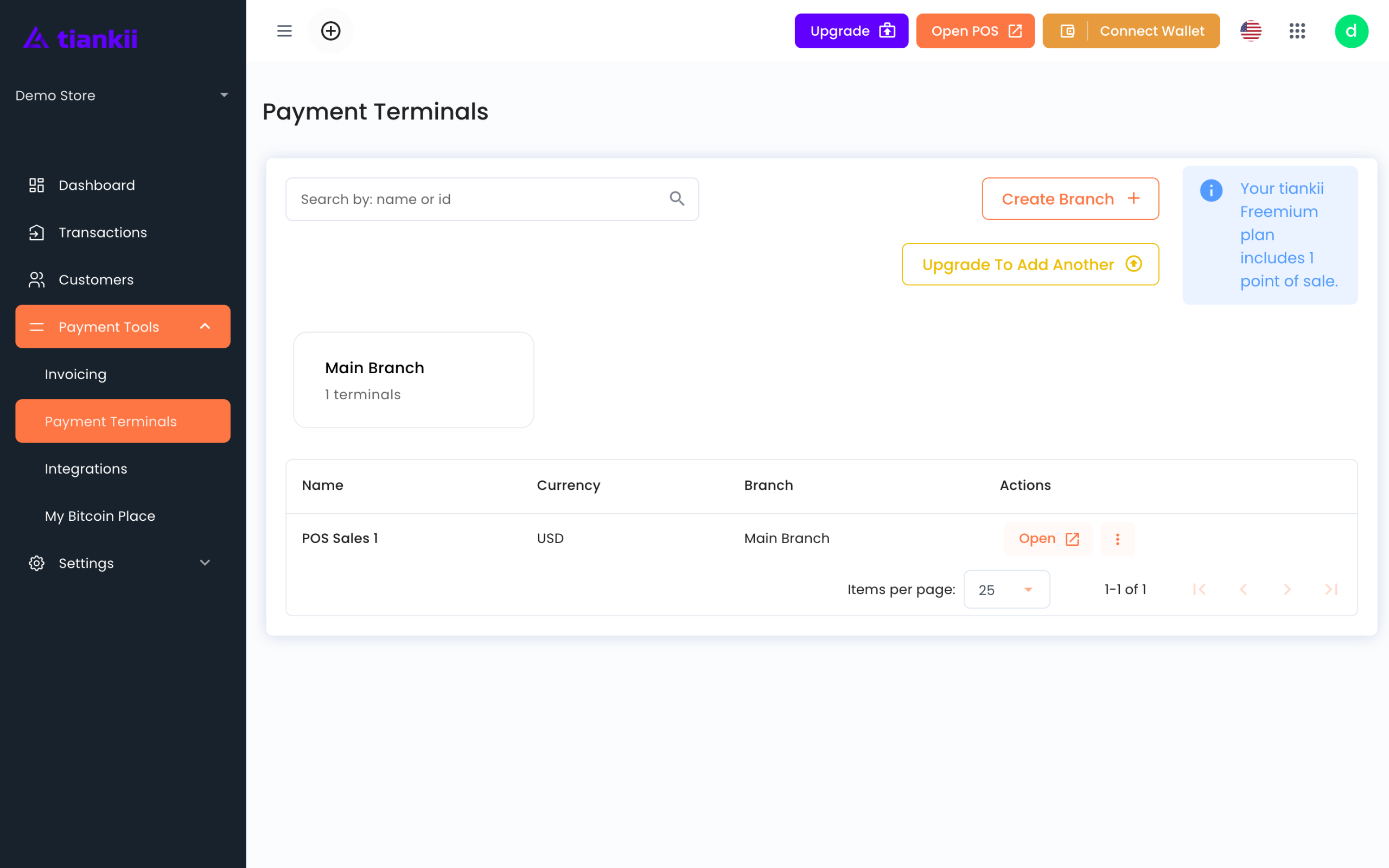
A point of sale is a payment screen that belongs to one of your counters. A new store already includes one: POS Sales 1, on Main Branch. The first charge does not ask you to create it. On a tiankii Freemium plan the button to add another reads Upgrade To Add Another, next to Your tiankii Freemium plan includes 1 point of sale. Each one keeps its own history, so at the end of the day you know which counter took what.
It runs in a browser, so any phone, tablet or computer with internet becomes a terminal. There is no hardware to buy and nothing to install.
Before you start
- A wallet connected from Connect Wallet. If you have not done this, do it first — a point of sale with no wallet has nowhere to send the money.
- The device you will use at the counter, with internet.
- About 100 sats of your own money for the test charge.
Step 1 — Open the point of sale you already have
- Log in to the Merchant Dashboard at https://pay.tiankii.com/.
- In the left panel, open Payment Tools and choose Payment Terminals.
- The page lists each terminal by Name, Currency and Branch. Create Branch opens a window titled Create a new Branch. It asks for Branch name, Color and a Preview. The buttons are Cancel and Create. That window adds a branch, not a terminal.
- A tiankii Freemium plan includes 1 point of sale. Once that terminal exists, the other button reads Upgrade To Add Another, next to the sentence Your tiankii Freemium plan includes 1 point of sale.
- The settings of a terminal are titled Update Point of Sale. The fields are Name, Title, Currency and Branch. Name is for you, in the terminal list. Title is what your customer sees on the payment screen, so use something they will recognise — your shop name, not till-2-backup. The actions are Back To The App List and Save Settings.
- The row action Open leaves the Dashboard and opens that terminal. The header button Open POS opens it too.
The list shows the terminal under its branch.
Name your points of sale after real places, not numbers. Front counter and Terrace tell you something in Transactions six weeks from now. POS 1 and POS 2 do not.
Step 2 — Run a test charge before a customer is watching
Do not let your first real payment be the first time you see the flow. Charge yourself first.
- Open the terminal with Open or Open POS.
- On tiankii POS, tap New Payment >>.
- Type a small amount — a few cents. The keypad shows USD and the sats, then tap Charge >>.
- The next screen is titled Pay with. It shows Bitcoin, the QR, Payment Key / Lightning Address, and Refresh. With one wallet connected, Bitcoin does not offer another method.
- Pay the QR from your own wallet, then confirm the sats in the wallet app.
That last step is the one people skip and it is the one that matters. The tiankii screen tells you we saw the payment. Your wallet tells you the money is yours. Check both once, so you know what each one is telling you.
A test charge is real money going from your wallet to your wallet, and tiankii records it like any other payment.
Step 3 — Take a real payment
- Open the point of sale on the device at your counter.
- Type the amount. The keypad shows it in USD and in sats.
- Tap Charge >>. The screen is titled Pay with and includes Refresh.
- Turn the screen to your customer. They scan it with a Lightning wallet and confirm.
- A paid charge shows as PAID or COMPLETE in Transactions. Confirm the sats in your wallet.
The whole exchange usually takes a few seconds. There is no card terminal to dial out, no signature and no chargeback window: the payer cannot reverse a Lightning payment, so if you need to refund, you do it from your wallet.
Reading the payment screen
| What you see | What it means | What to do |
|---|---|---|
| Pending on tiankii POS | The charge is on today's list and has not been marked paid there. The same charge is NEW in Transactions and new on the invoice detail. | Open the charge in Transactions. An unpaid charge offers Recheck and Cancel Invoice. |
| PAID or COMPLETE in Transactions | Transactions has the charge as paid. The detail shows paid. | Confirm the sats in your wallet, then hand over the goods. |
| Type an amount greater than 0 | The keypad was at 0, so no charge was created. | Enter an amount greater than 0, then tap Charge >>. |
| Error creating — No payment method is ready for this charge. Check the store setup. | The store has no payment method ready. No charge was created. | Connect a wallet from Connect Wallet, then charge again. |
Set up your counter properly
- One point of sale per till. If two staff share one, you cannot tell their takings apart later.
- Bookmark the point of sale on the counter device. Opening it should be one tap, not a login and four clicks, when there is a queue.
- Give staff their own users. They charge; they do not need access to your wallet settings.
- Connect a receipt printer if your customers expect paper. The Dashboard supports Android receipt printers.
Other ways to get paid
The point of sale is for someone standing in front of you. For everything else:
- Payment links — send a link by message or email and get paid remotely. Good for deposits, invoices and bookings.
- E-commerce connectors — WooCommerce and Shopify take Bitcoin at checkout on your online store.
- Cloudbeds — for hotels taking Bitcoin against a reservation.
Bitcoin payments on all of them settle to the wallet connected to that store, and all of them show up in the same reports.
Frequently asked questions
What if the customer has not paid yet?
The charge screen shows Refresh. This guide does not state a time limit. Open the unpaid charge in Transactions: the actions are Recheck and Cancel Invoice.
The charge screen shows Refresh. This guide does not state a time limit. Open the unpaid charge in Transactions: the actions are Recheck and Cancel Invoice.
Can I charge in dollars instead of sats?
The keypad shows the amount in USD and in sats. Your customer pays in Bitcoin.
The keypad shows the amount in USD and in sats. Your customer pays in Bitcoin.
Does my customer need a tiankii account?
No. A Lightning wallet works. They scan and pay.
No. A Lightning wallet works. They scan and pay.
What if I charge the wrong amount?
Use Cancel Invoice on the unpaid charge, then create the correct one. If the customer already paid, refund them from your own wallet — the money is in your hands, not ours.
Use Cancel Invoice on the unpaid charge, then create the correct one. If the customer already paid, refund them from your own wallet — the money is in your hands, not ours.
Next steps
- Learn when to use a QR and when to use tap-to-pay at the counter.
- Open Transactions to see what each terminal took.
- Know what to check when a payment does not show up.