Change language, currency, and notifications
Change language, currency, and notifications
The flag in the header of pay.tiankii.com switches the Dashboard between English (US) and Español (España). Currency and the default language are on Merchant Profile. Payment notifications are on their own page.
Applies to
- The Merchant Dashboard on the web.
- A person who can open Settings for the store.
- A desktop browser, which is what this check used. On the Freemium store in this check, these screens had no plan lock.
Before you start
- You are signed in at pay.tiankii.com.
- You can open Settings.
Change the Dashboard language
- Open pay.tiankii.com.
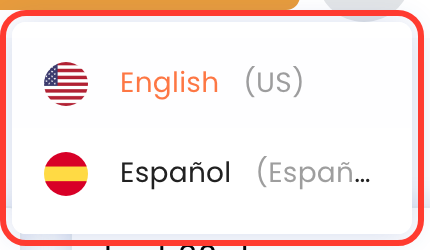
- Press the flag in the header. The menu shows English (US) and Español (España).
- Choose one. The Dashboard language changes. This menu has those two entries.
Set currency and default language
- Open Settings, then General Settings.
- On the card Merchant Profile, press Edit. The page is Merchant Profile.
- The required fields are Organization Name, Full Name, Industry, Country of Residence, Currency, and Default Language. The page also shows Store ID, Store Key, User Name, and Merchant Logo. The logo field says Enter a image url. The line Required fields must be completed before updating is on the page.
- Open Currency. The list opens. This check did not press Save.
- Open Default Language. The list includes English and Español, plus other languages. This check did not press Save.

The header flag and Default Language are two different controls. This check did not save either field, so it does not say what Save changes.
Turn notifications on or off
- On General Settings, the card Notification Settings lists Email Notifications, Telegram Notifications, and IoT Notifications. Each line says Enabled or Disabled. Press Edit.
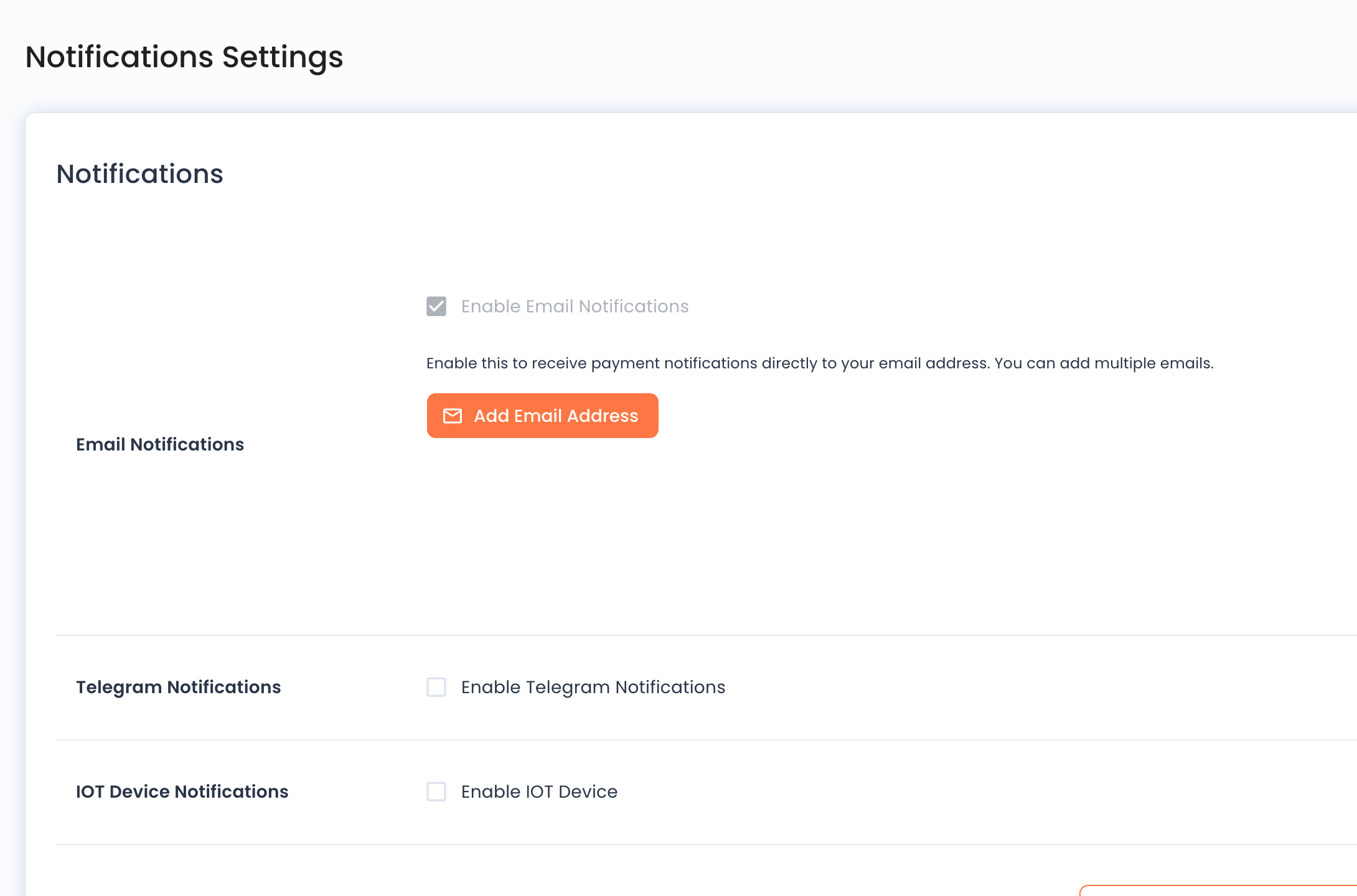
- The page title is Notifications. Under Email Notifications, the switch is Enable Email Notifications. The line says Enable this to receive payment notifications directly to your email address. You can add multiple emails.
- Add Email Address opens a dialog. It says Enter the email address you want to receive notifications on. The field is Email address and the button is Add. That dialog is in English.
- Under Telegram Notifications, the switch is Enable Telegram Notifications. The line says Follow the instructions in the documentation to setup Telegram notifications. The block also has Add Telegram Notifications and Subscribed Groups. This check did not open that documentation.
- Under IOT Device Notifications, the switch is Enable IOT Device. Turning it on shows Add IoT Device and Subscribed Devices.
- Press Cancel to leave. This check turned switches on and then pressed Cancel. The saved summary on General Settings did not change. Turning a switch on did not, by itself, change that summary. This check did not find a separate save button on this page.
What you should see
The header shows the language you chose. Merchant Profile still shows the currency and default language already saved on the store, because this check did not press Save. The notification card shows Enabled or Disabled for email, Telegram, and IoT.
If something fails
| What you see | What it means | What to do |
|---|---|---|
| Notification labels stay in English. | On the Spanish Dashboard, several of these labels are still English. | Use the English label on the control. The page title can still be Notificaciones. |
| The summary did not change after a switch. | This check saw the same result. The switch alone did not write the saved summary, and Cancel left it as it was. | Read the summary on General Settings again after you leave the page. |
| Required fields must be completed before updating | A required field on Merchant Profile is empty. | Fill the fields marked with an asterisk, then press Save. |
Questions
Does the header flag change Currency? No. Currency is the field on Merchant Profile. The flag changes the Dashboard language.
Where do I add another email? On Notifications, press Add Email Address. The screen says you can add multiple emails.
What does the Telegram documentation cover? The screen points to it. This check did not open it, so those steps are not here.