Tour the Merchant Dashboard
Tour the Merchant Dashboard
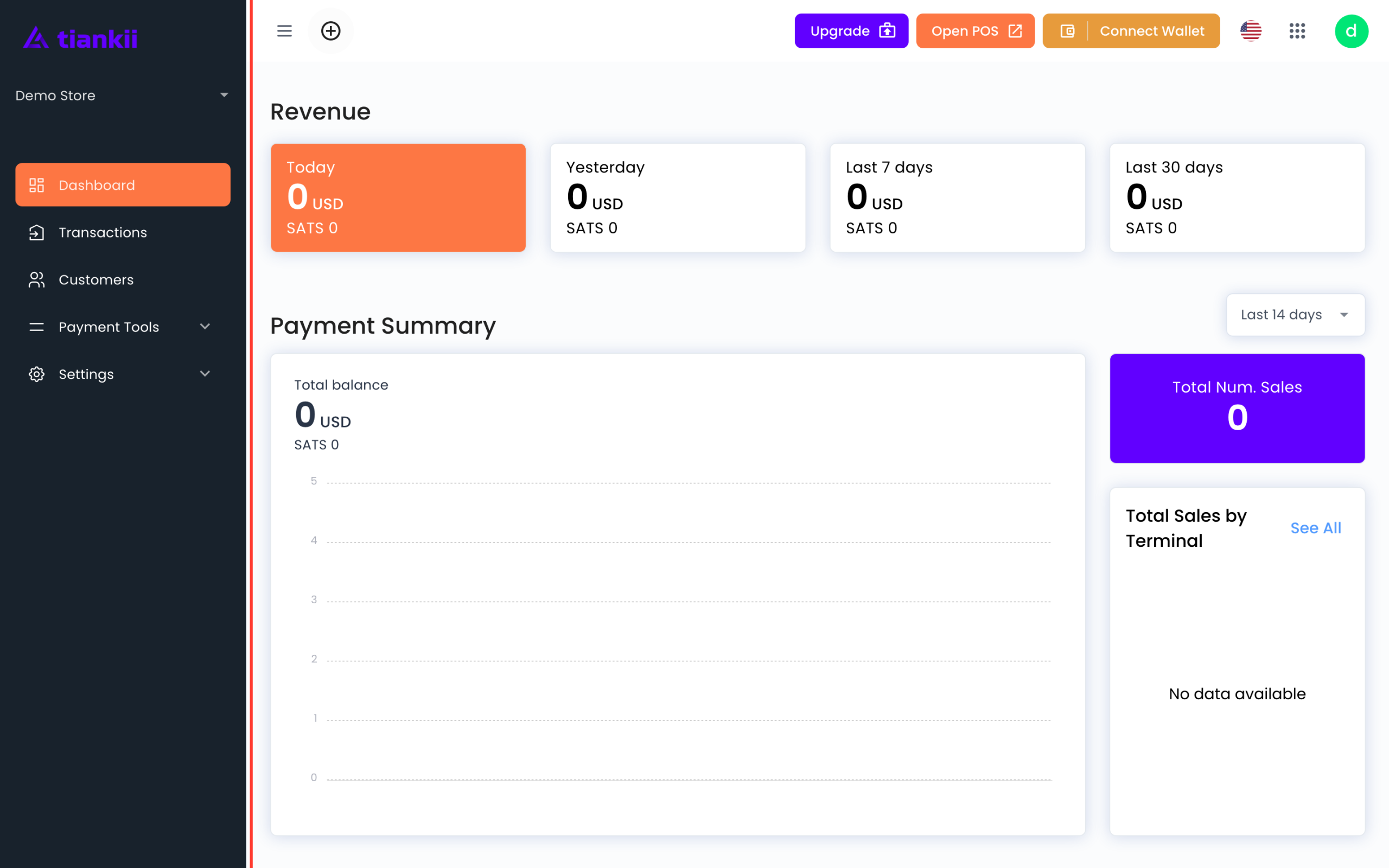
The home screen is a set of sales blocks, a side menu and a top bar. This tour names each label. It does not change the store.
Applies to
- The Merchant Dashboard on the web, after you are signed in.
- The store you have open. The name of the store, at the top of the side menu, opens the store picker.
Before you start
- A store you can open.
- You can sign in.
Read the side menu
- Open pay.tiankii.com. The side menu lists Dashboard, Transactions, Customers, Payment Tools and Settings.
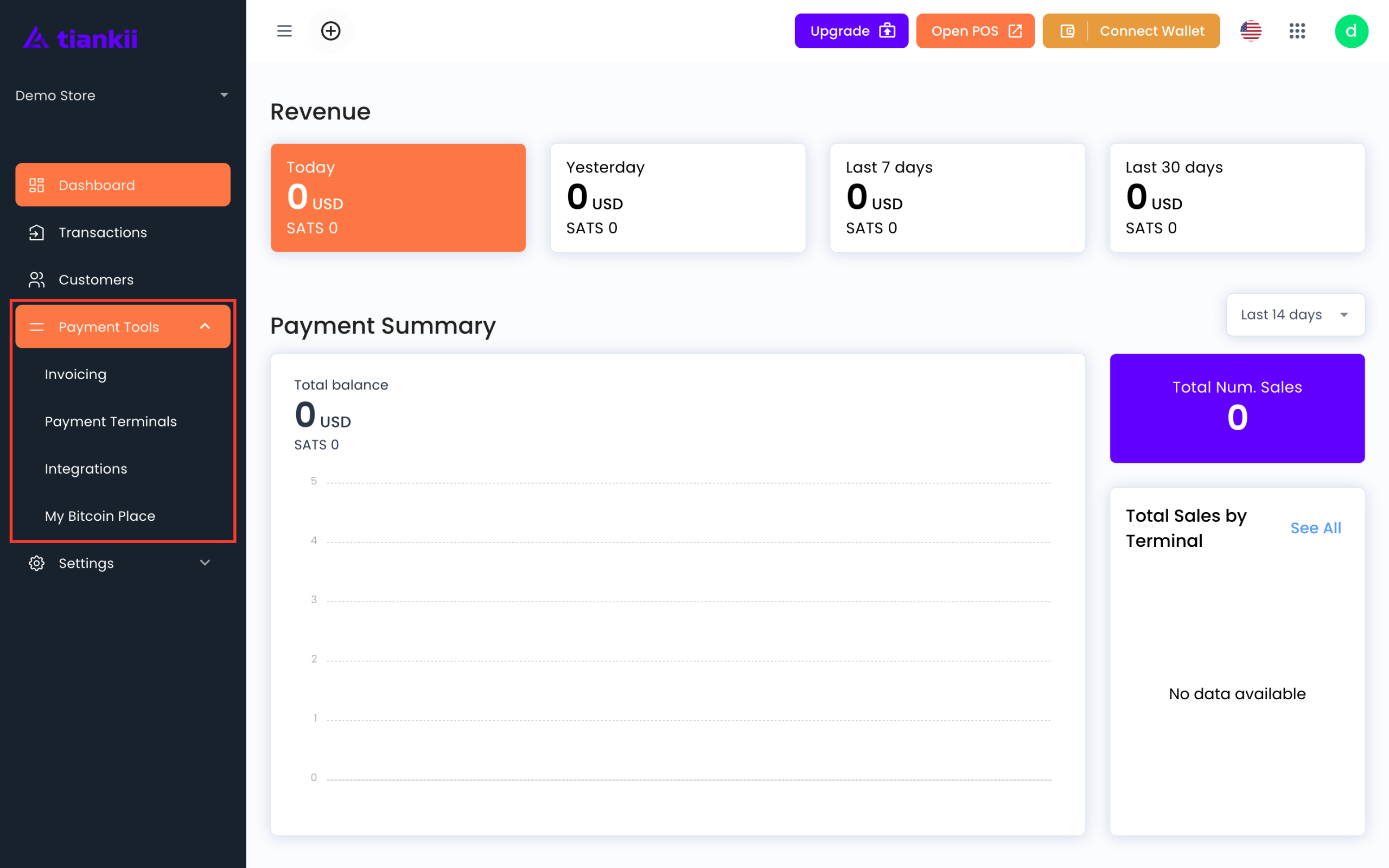
- Open Payment Tools. The entries are Invoicing, Payment Terminals, Integrations and My Bitcoin Place.
- Open Settings. The entries are General and Products.
- The ≡ button in the top bar collapses the side menu to icons.
Use the top bar
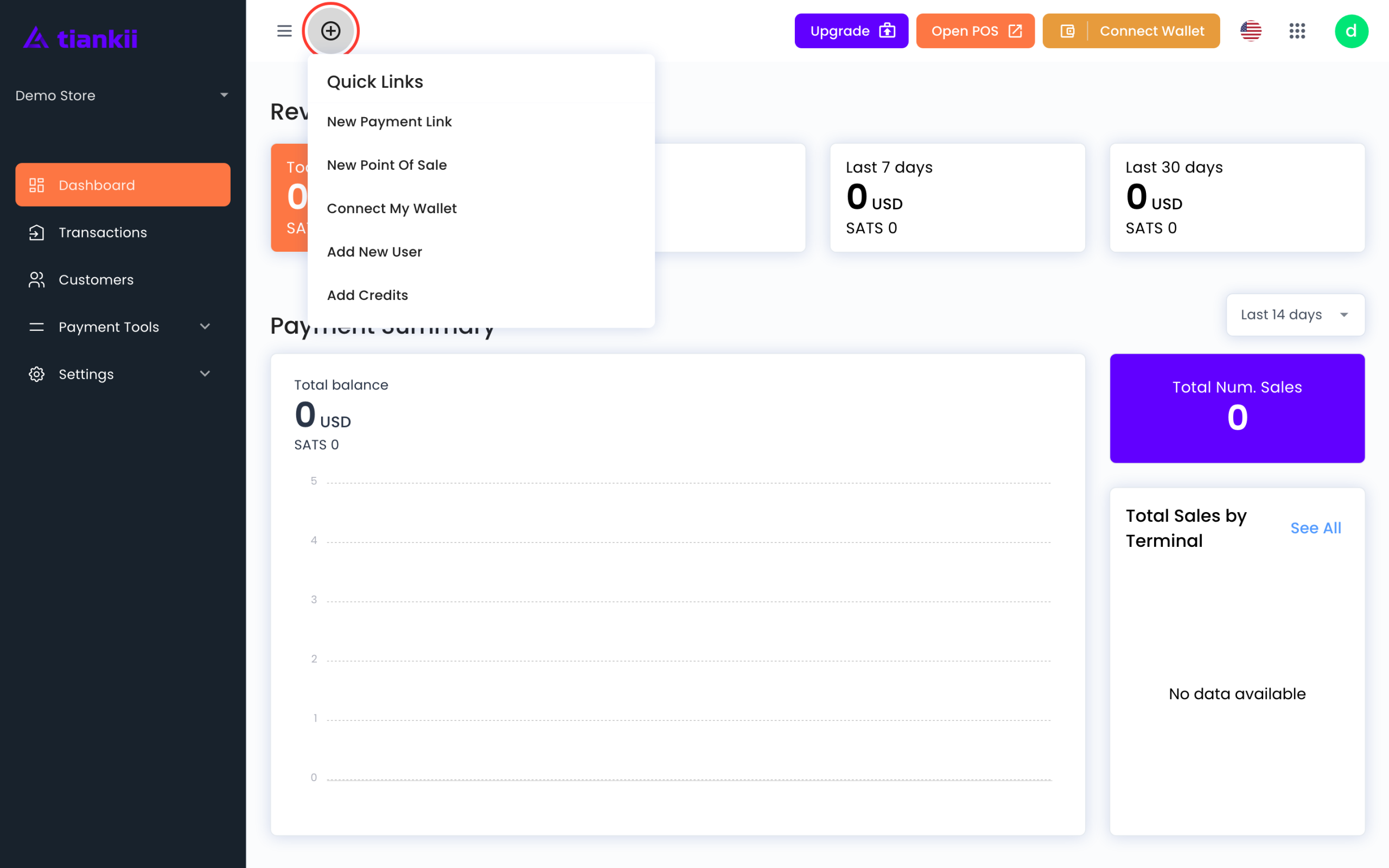
- The + button opens Quick Links: New Payment Link, New Point Of Sale, Connect My Wallet, Add New User and Add Credits.
- Upgrade and Open POS sit in the top bar. Open POS leaves the Dashboard and opens the point of sale. This tour did not press Upgrade.
- Connect Wallet opens the Connected Wallets panel. Connecting a wallet is its own article.
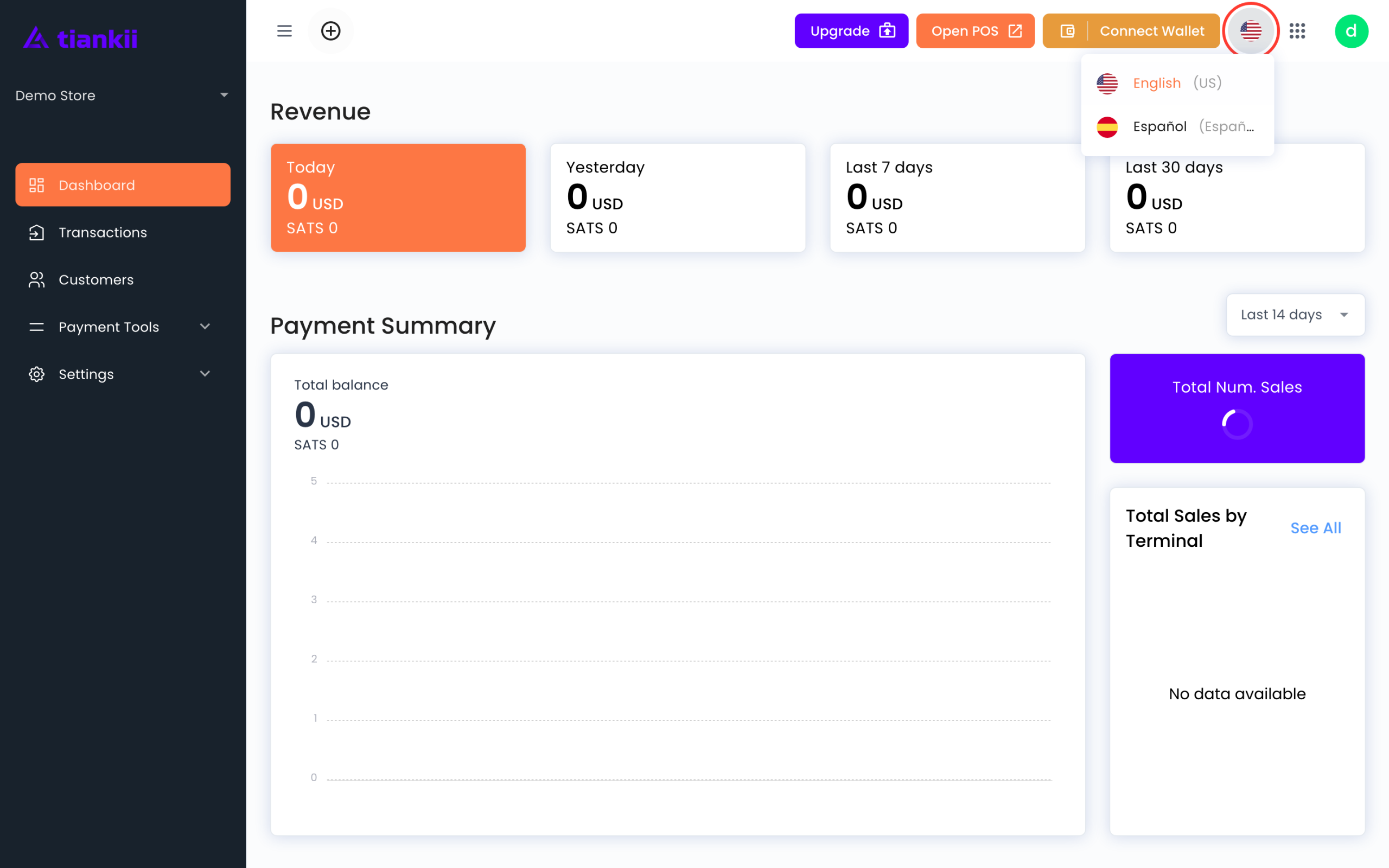
- The flag lists English (US) and Español (España).
- The app grid opens a panel. On this pass the panel was empty.
Open your profile
The avatar opens User Profile. Under Subscription you see the plan and Manage Subscription. Need help? lists Chat With Us, Support and Documentation. Configuration lists Settings and Profile. The menu also has Dark theme and Logout.
Read the home blocks
- Revenue shows Today, Yesterday, Last 7 days and Last 30 days, each in USD and in SATS.
- Payment Summary shows Total balance, Total Num. Sales and a range that reads Last 14 days.
- Total Sales by Terminal has See All. With no sales it says No data available.
- Sales Summary shows Tips, Total Refunded, Average Sale and Max Sale.
- Recent Payments is a table with Amount, Terminal, Time and Date, plus See All.
- Top Items by Sale sits under that table.
These blocks summarize the sales you took with tiankii. Total balance is a label on this block: it is not your credit balance, and it is not bitcoin held by tiankii, because bitcoin payments go to your wallet. Reading a sale, and exporting it, is the Transactions article.
What you should see
You can name every item in the side menu and the top bar, and you can open Quick Links and the language menu without leaving the home screen.
If something fails
| What you see | What it means | What to do |
|---|---|---|
| The app grid panel is empty. | On this pass it opened with nothing in it. | Use the side menu. Payment Tools and Settings are there. |
| A home block says No data available. | That block has no sales to show. | Take a charge from the point of sale, then come back to this screen. |
| Connect Wallet opens a panel and you still need a wallet. | The panel lists what is already connected. | Use the connect article. |
Questions
Where are reports? The home screen has the blocks above. The list of payments, and the export, live under Transactions.
Does Quick Links create a terminal? The menu shows New Point Of Sale. The terminals you already have are under Payment Tools → Payment Terminals. Setting one up is its own article.
Which language is this? The flag offers English (US) and Español (España). Sign-in screens stay in English either way.