Log in and recover your access
Log in and recover your access
Open pay.tiankii.com, choose Continue with Email, and enter the password. If you forgot it, Forgot password? sends a reset link. These sign-in screens are in English.
Applies to
- The Merchant Dashboard on the web.
- The person who owns the login for the store.
- A desktop browser, which is what this check used.
Before you start
- The email or phone on the account.
- The password, when you sign in with email.
Sign in with email
- Open pay.tiankii.com. The screen is Welcome to Merchant, with Choose an option to continue.
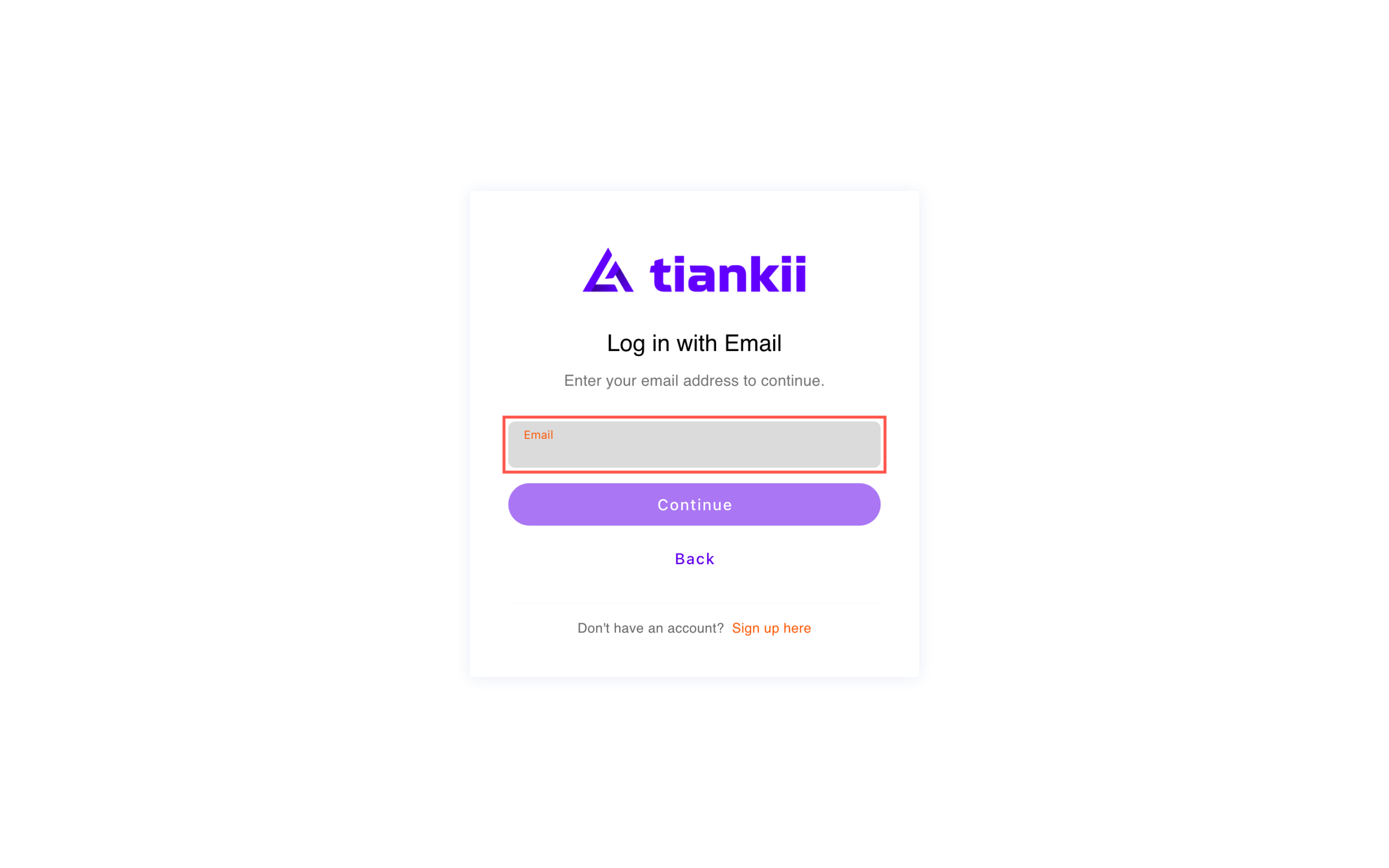
- Press Continue with Email. The next screen is Log in with Email and says Enter your email address to continue. Type the address and press Continue. Back returns to the method list.
- The password screen is Enter your password. It shows the address, the field Password, the checkbox Remember this device, and Forgot password?. Press Continue.
- To leave, open your avatar and press Logout.
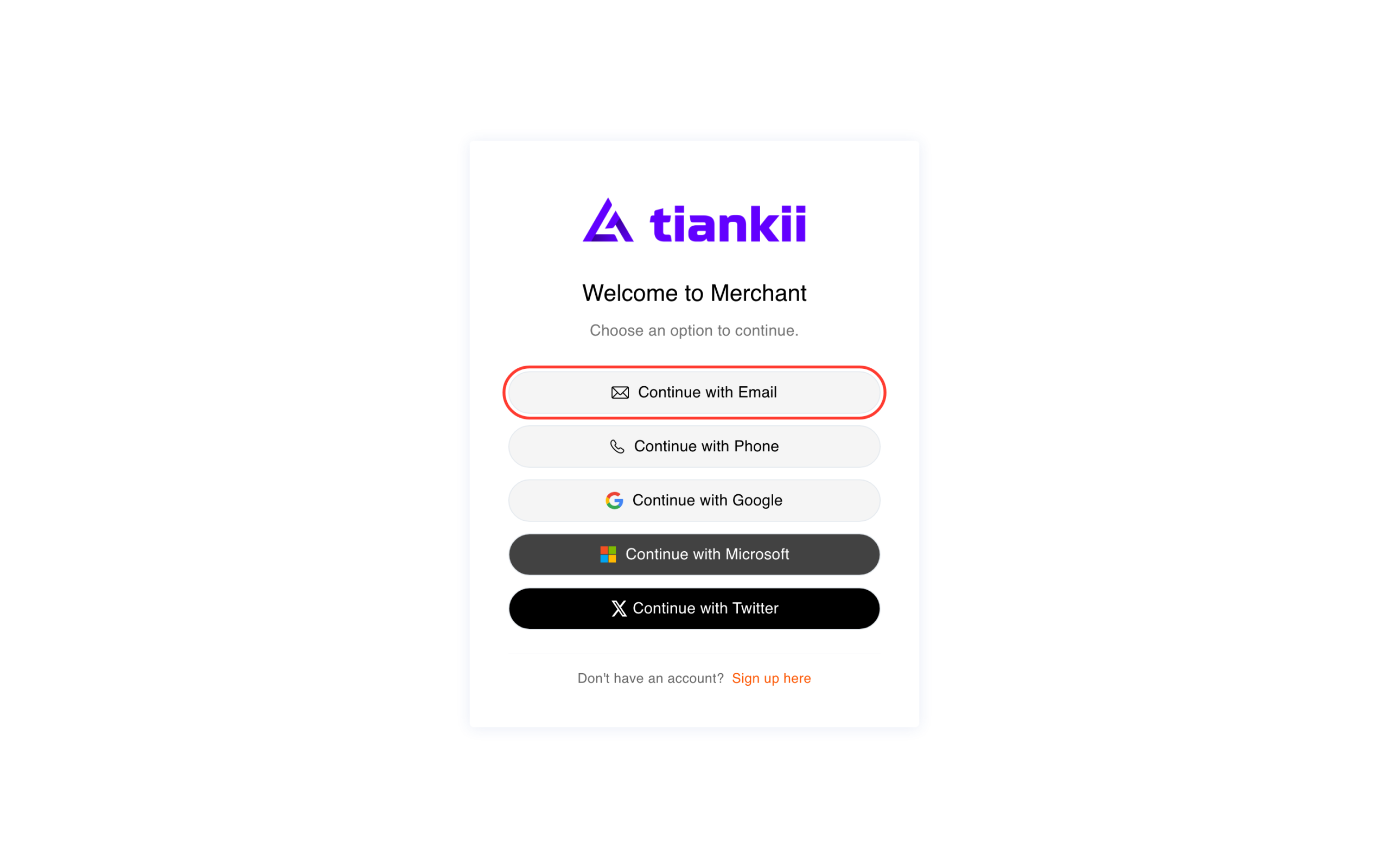
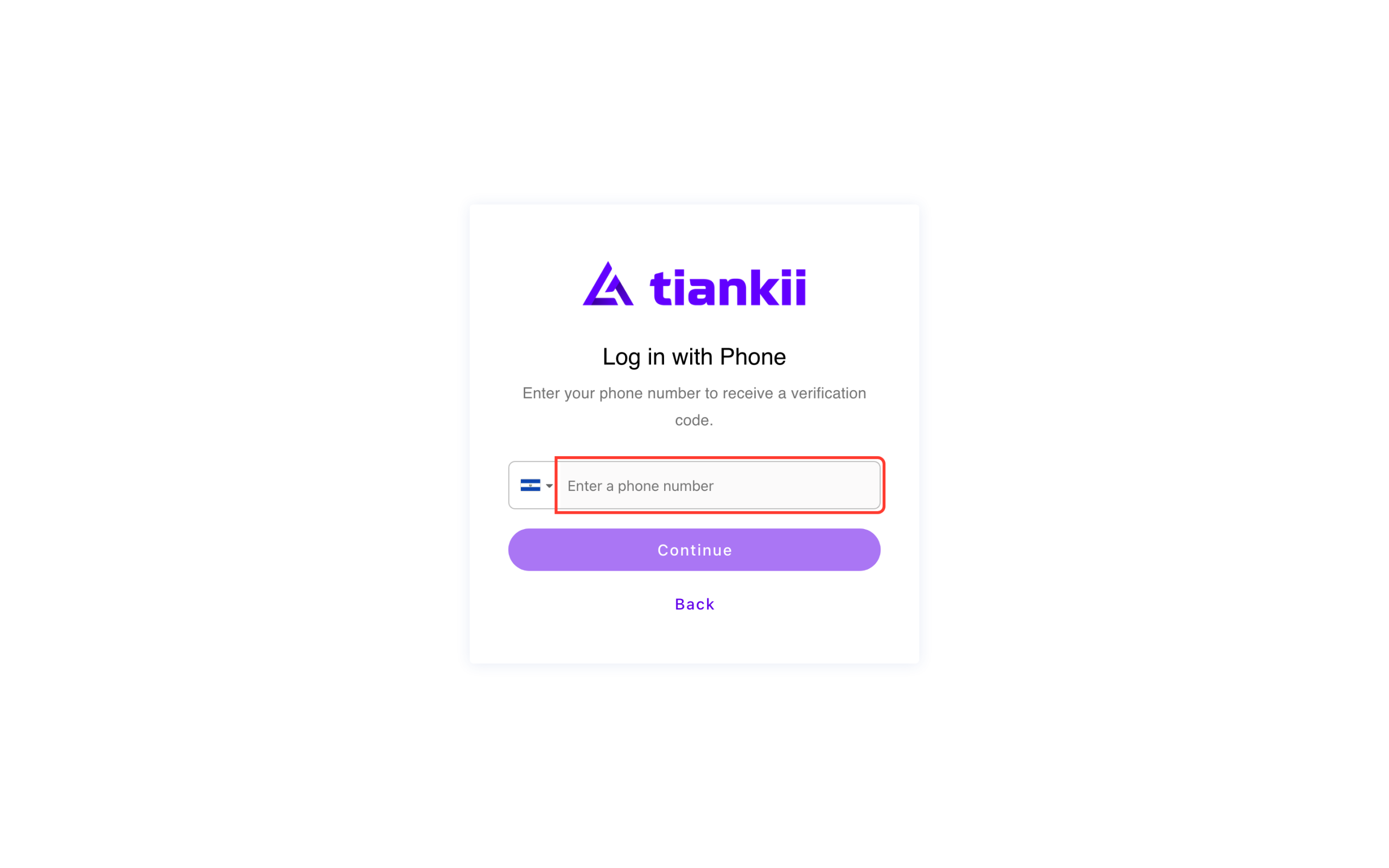
The first screen also offers Continue with Phone, Continue with Google, Continue with Microsoft and Continue with Twitter. Phone opens Log in with Phone and the line Enter your phone number to receive a verification code. This check stopped on that field. The other three buttons are on the screen; this guide follows email.
Under the methods, Don't have an account? Sign up here starts a new account. Creating the store is a separate guide.
Send a reset link
- On the password screen, press Forgot password?.
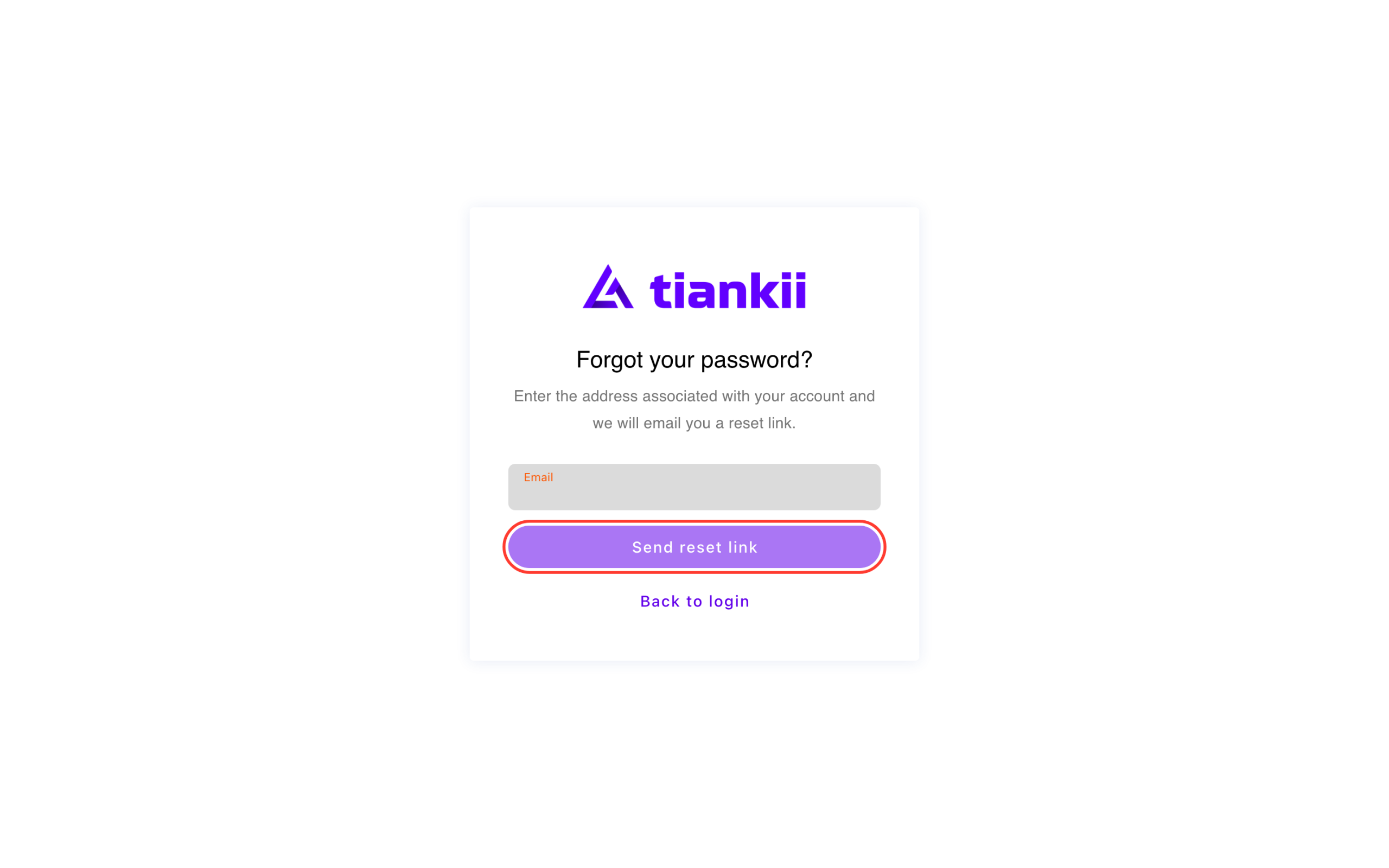
- The screen is Forgot your password? It says Enter the address associated with your account and we will email you a reset link.
- Type the address and press Send reset link. Back to login returns without sending.
After a send, the screen says An email containing instructions to reset your password has been sent, with Close, and returns to Log in with Email. Open that message and follow it. The page that sets the new password was not part of this check, so it is not described here.
An account that has not confirmed its email can land, after the password, on Verify your email. The screen says it sent a 6-digit code. The buttons are Verify, Use another email and Resend code. This check did not enter a code.
What you should see
You land on the Dashboard. The side menu shows Dashboard, Transactions, Customers, Payment Tools and Settings.
If something fails
| What you see | What it means | What to do |
|---|---|---|
| The password is invalid or the user does not have a password. | The address and the password do not match, or this login has no password. | Press Use another email and check the address, or send a reset link. |
| The reset confirmation does not appear. | The send did not finish. | Stay on Forgot your password? and press Send reset link again. |
| Verify your email asks for a code. | The address is not confirmed yet. | Use the code from that mailbox, or press Resend code. |
Questions
Why is this screen in English? The sign-in screens, the reset screen and the email code are only available in English. The Dashboard language does not change them.
Where is the sign-in button? It is Continue, once on the email screen and again on the password screen.
What does Remember this device do? The checkbox is on the password screen. What it stores was not part of this check.