Charge with a payment link
Charge with a payment link
A payment link is a page with one amount. You build it from Invoicing. A bitcoin payment your customer makes through this link goes to the wallet you connected. On the customer's page the button reads Pay.
Applies to
- The Merchant Dashboard on the web.
- A store with a wallet already connected.
- Someone you can send a link to.
Before you start
- A wallet connected.
- The amount, a short title and a one-line description.
Start the link
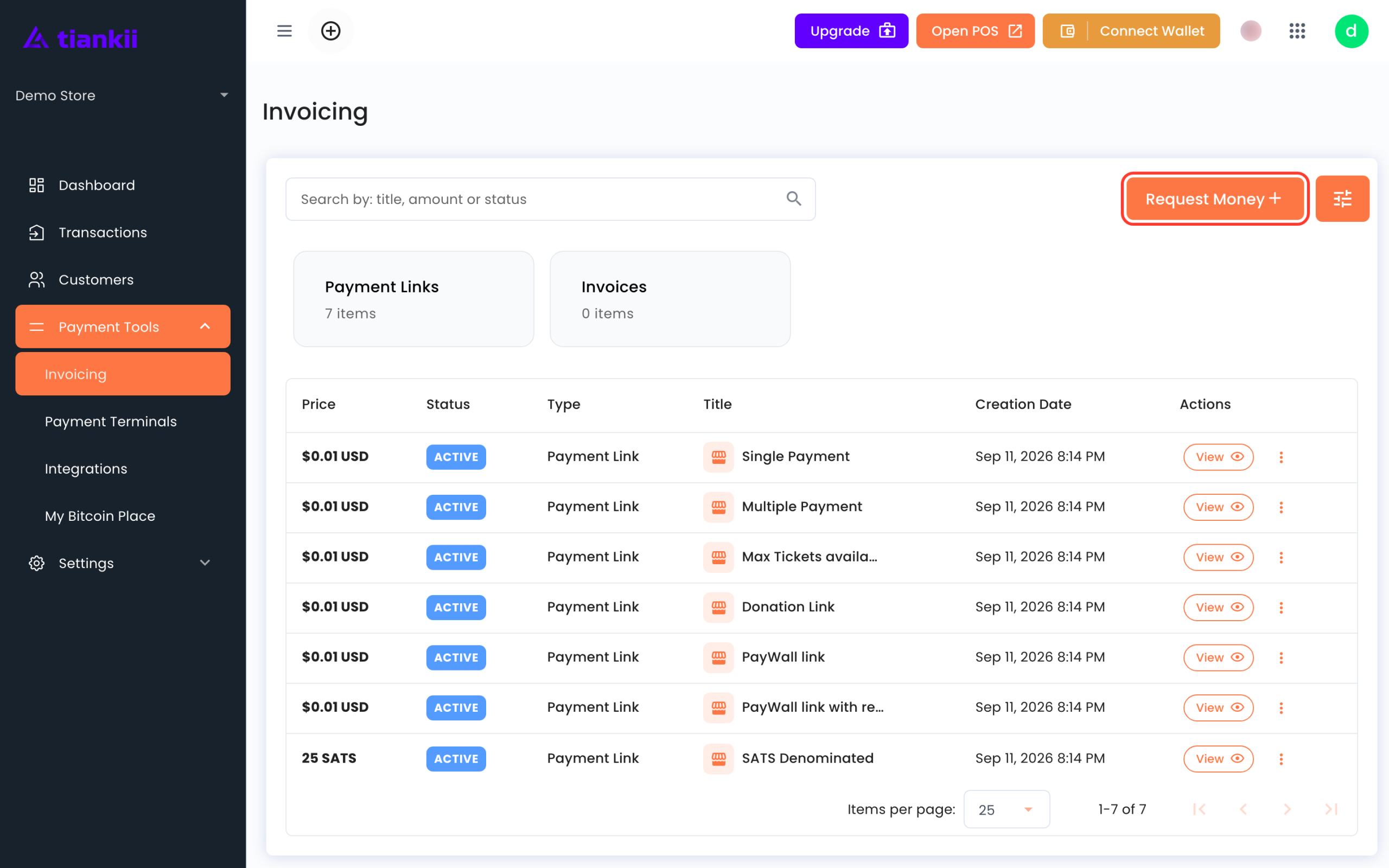
- Open Payment Tools and then Invoicing. The page title is Invoicing.
- Two cards sit at the top: Payment Links and Invoices, each with a count. The table columns are Price, Status, Type, Title, Creation Date and Actions.
- The search line reads Search by: title, amount or status.
- Press Request Money.
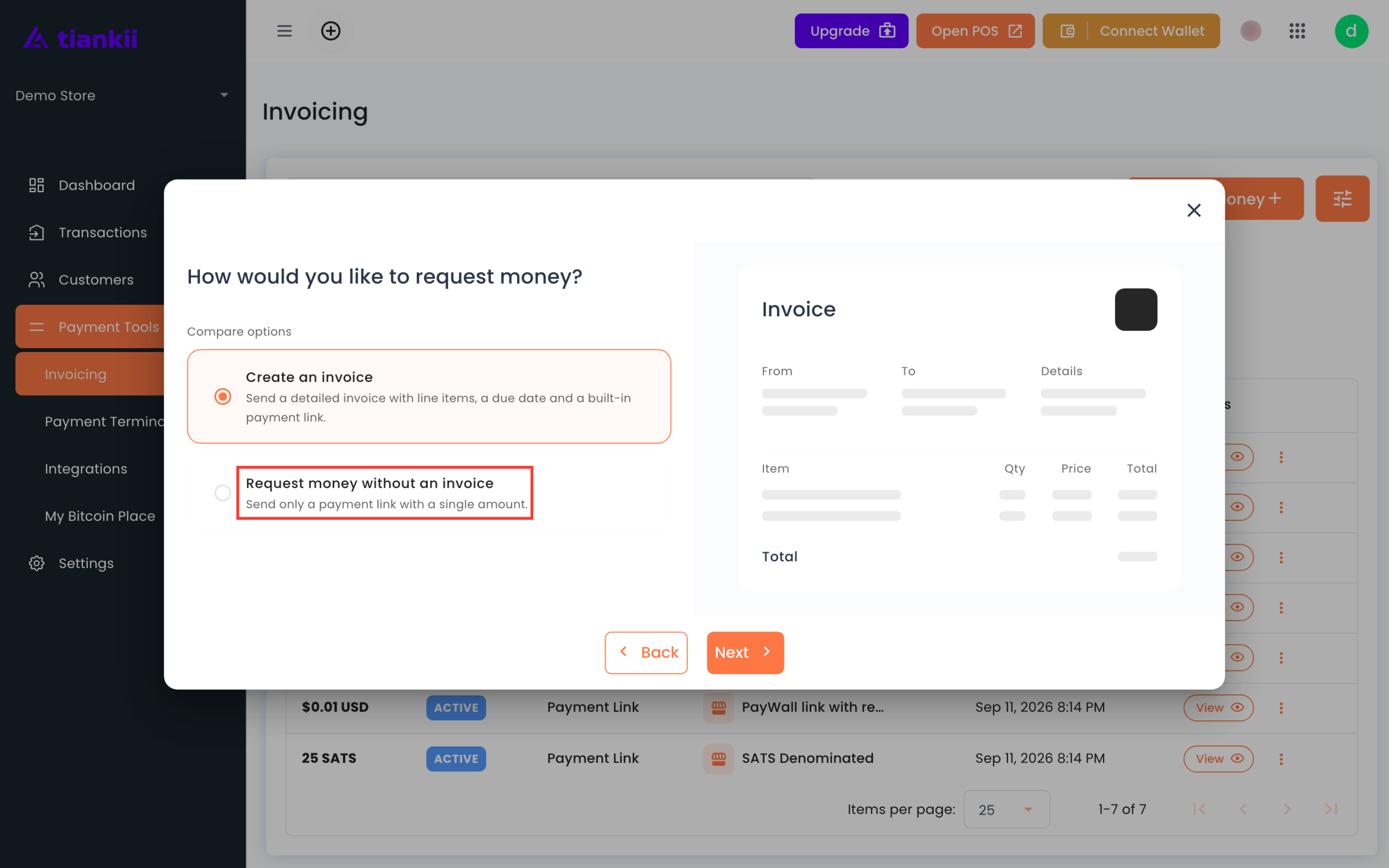
The dialog is How would you like to request money? It offers two choices. Create an invoice says Send a detailed invoice with line items, a due date and a built-in payment link. Request money without an invoice says Send only a payment link with a single amount. The buttons are Back and Next. This guide follows the second choice. The invoice form is not described here.
Fill in the link
- Choose Request money without an invoice and press Next. The form title is Add Payment.
- On Payment Page, fill Title, Description and Amount. Local Currency shows US Dollar (USD).
- The other controls on that page are Customer decides on payment page, Allow Partial Payments, and FREQUENCY: Multiple Payments, One-Time and Recurring.
- Under OPTIONS the labels are Request Contact Details, Request Email, Request Phone Number, Request Customer Address, Request Reference and Optional Field Requirement Strategy.
- ADVANCED OPTIONS has Payment methods and lists the wallets already connected.
- The Preview shows the page the customer will open, including Pay with Bitcoin and the button Pay.
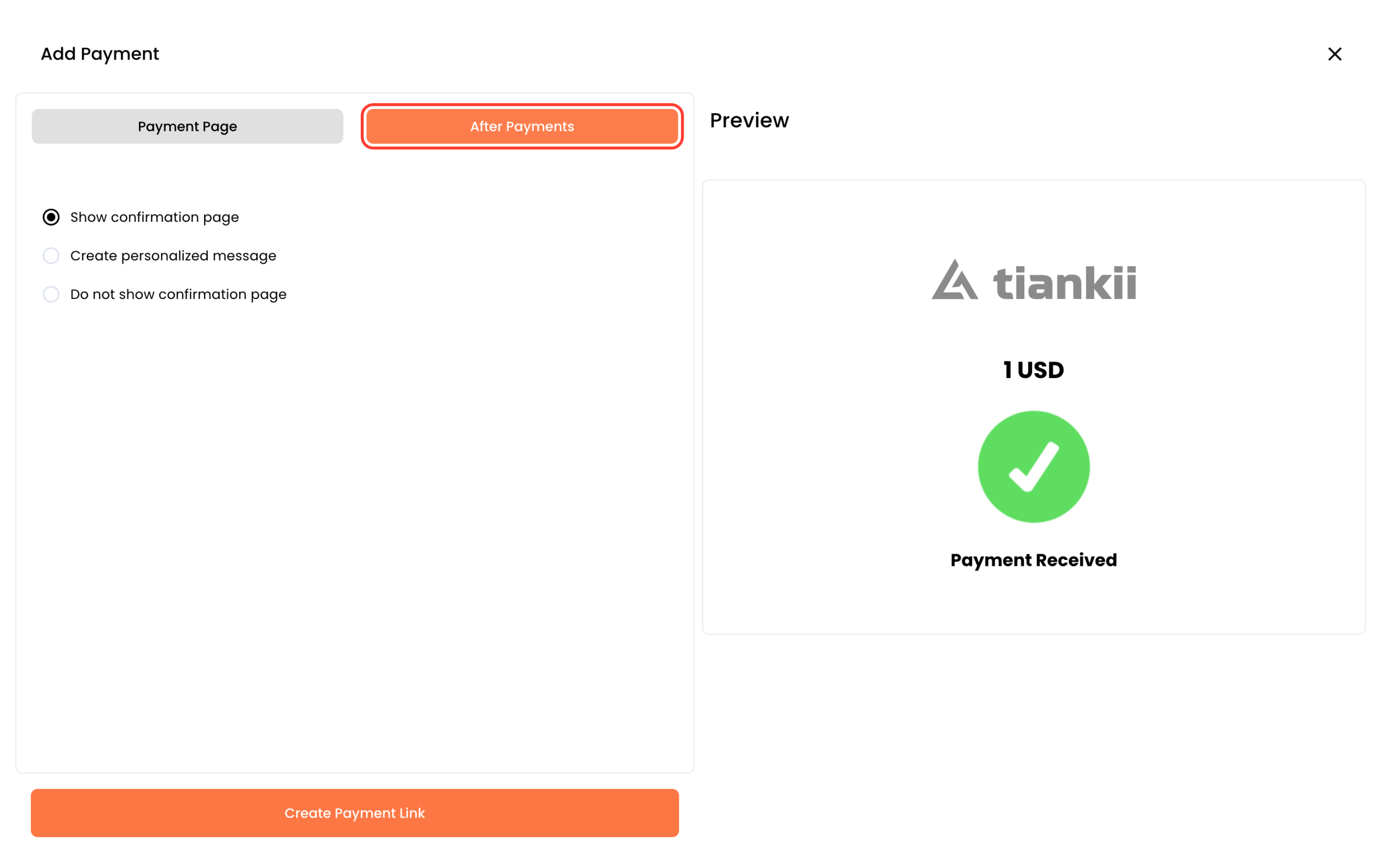
- Open After Payments if you want to choose what the customer sees next: Show confirmation page, Create personalized message or Do not show confirmation page. The preview of the first option reads Payment Received.
- Press Create Payment Link.
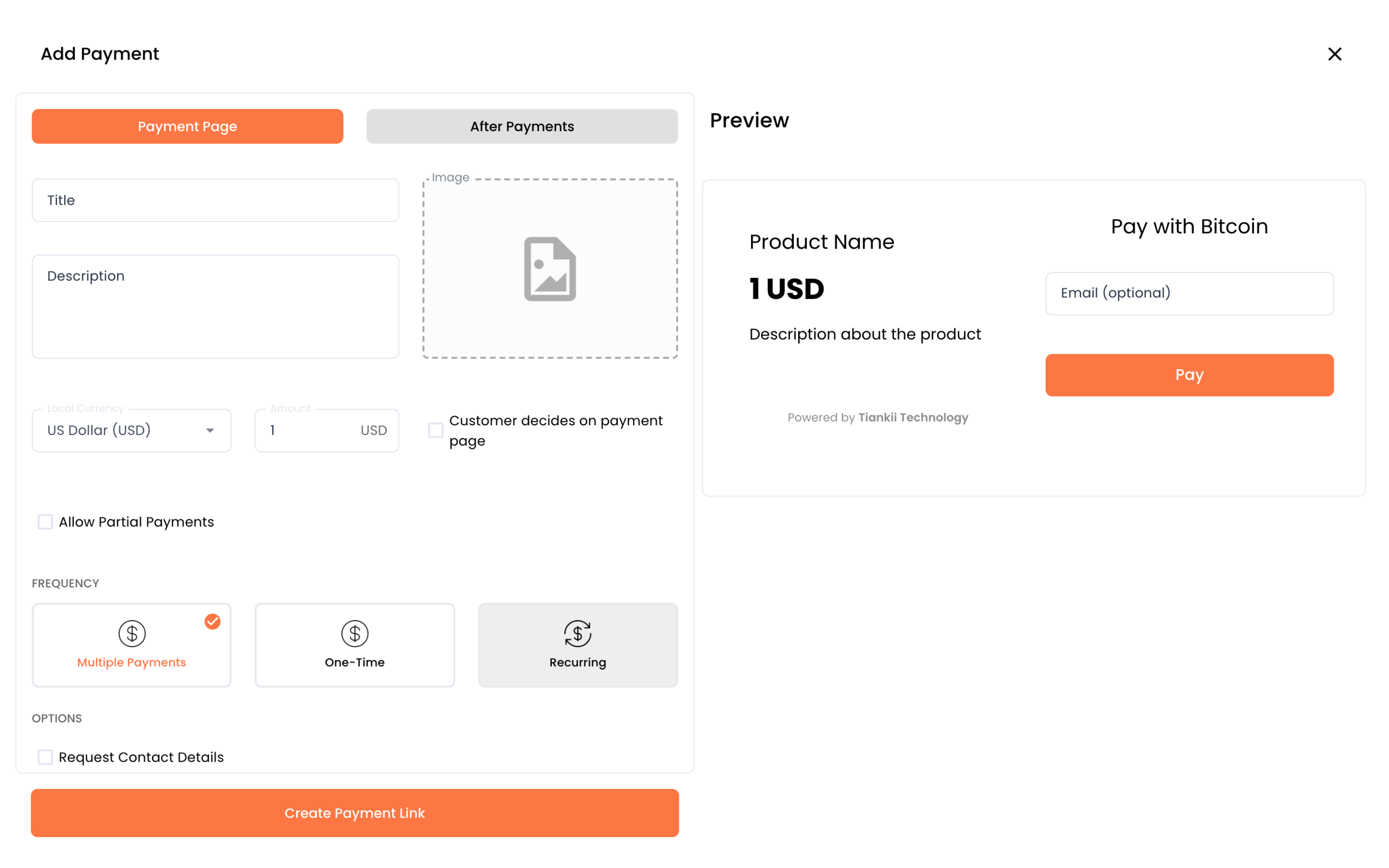
On the form opened in this check, Multiple Payments is the card already marked. This check did not switch FREQUENCY and did not tick the other boxes.
Share it
The new row appears at the top of Payment Links, with status ACTIVE and type Payment Link. The row menu is Edit, Open, Copy Link and Archive. View opens Payment Links Details. That screen says Your link is ready! and offers Copy, Open, QR Code and Pay Button. Below that are Details and Payment list.
Send the copied link. The customer opens it and presses Pay.
What you should see
The link is the first row, marked ACTIVE. Copy gives you the address to send. The payment list on the detail starts empty and fills when someone pays.
If something fails
| What you see | What it means | What to do |
|---|---|---|
| Create Payment Link does nothing visible. | A required field is still empty. Title, description and amount are the ones this check filled. | Fill those three and press the button again. |
| The customer says the page has no Pay button. | They may be on a different screen. | On the detail, press Open and look for Pay. |
| The payment is not in the list yet. | The detail list shows payments on this link. | Use the article for a payment that did not arrive. |
Questions
Is this an invoice? Only if you chose Create an invoice. Request money without an invoice is one amount and one link.
Where does the bitcoin payment go? It goes to the wallet you connected. The payment methods on the form are the ones already connected to the store. A card payment is not bitcoin and does not go to your wallet.
Can I turn the link off? The row menu includes Archive. This check did not press it, so the result of Archive is not described here.