Set up a point of sale
Set up a point of sale
A point of sale is the screen your customer pays on. You open it from Payment Tools → Payment Terminals. A bitcoin payment your customer makes at this point of sale goes to the wallet you connected.
Applies to
- The Merchant Dashboard on the web.
- A store that already has a wallet connected.
- On the screen checked here, the notice reads Your tiankii Freemium plan includes 1 point of sale.
Before you start
- A wallet connected.
- The name you want the customer to see on the payment screen.
Open the terminal
- In the side menu, open Payment Tools and then Payment Terminals.
- The page title is Payment Terminals. A branch card shows the branch name and how many terminals it has. The table columns are Name, Currency, Branch and Actions.
- The row checked here reads POS Sales 1, USD, Main Branch, and Open. Open leaves the Dashboard and opens that terminal.
- Create Branch is the button for a branch. Upgrade To Add Another sits next to the plan notice. This pass did not open either button.
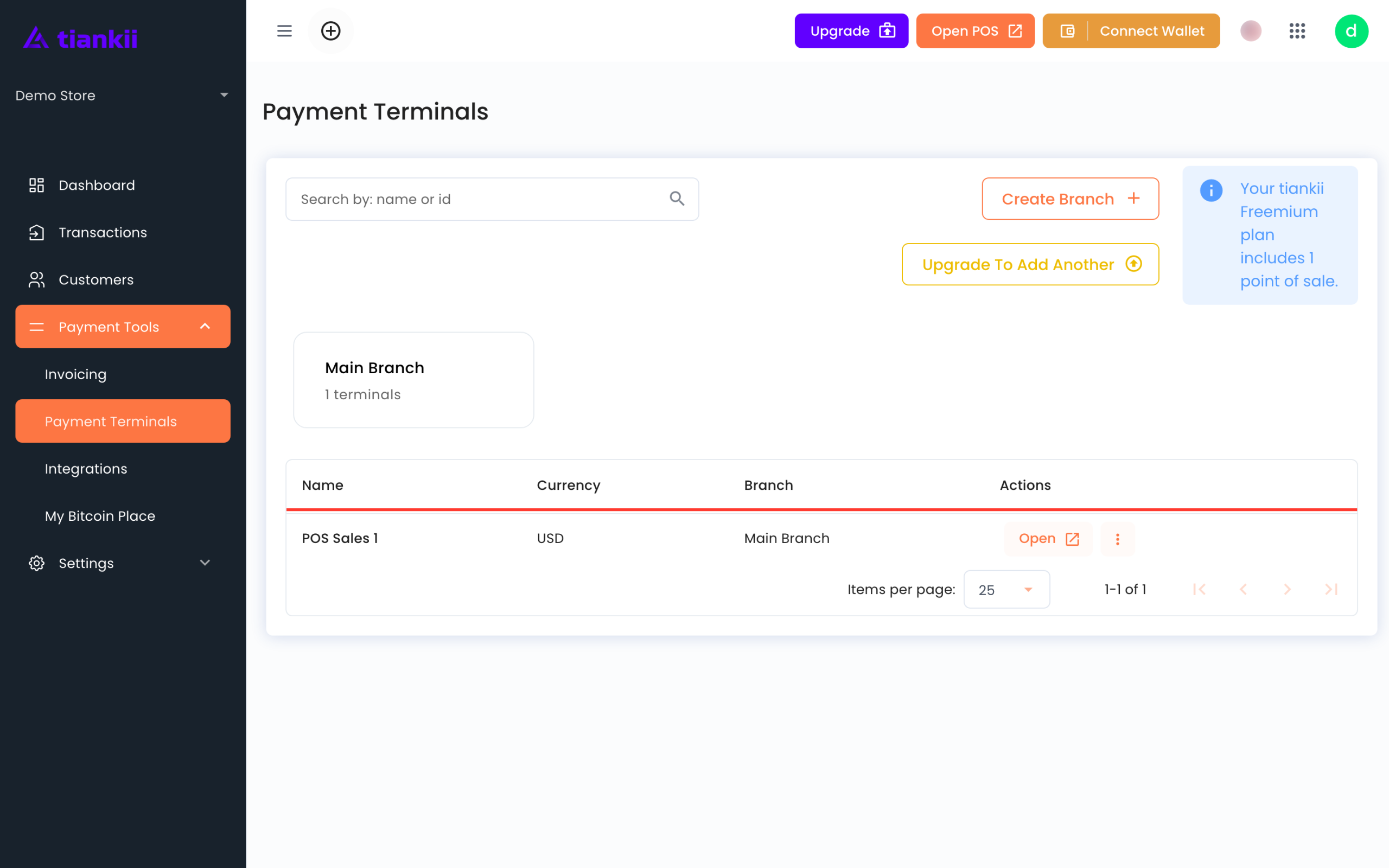
There is a search field, Search by: name or id.
Edit the terminal
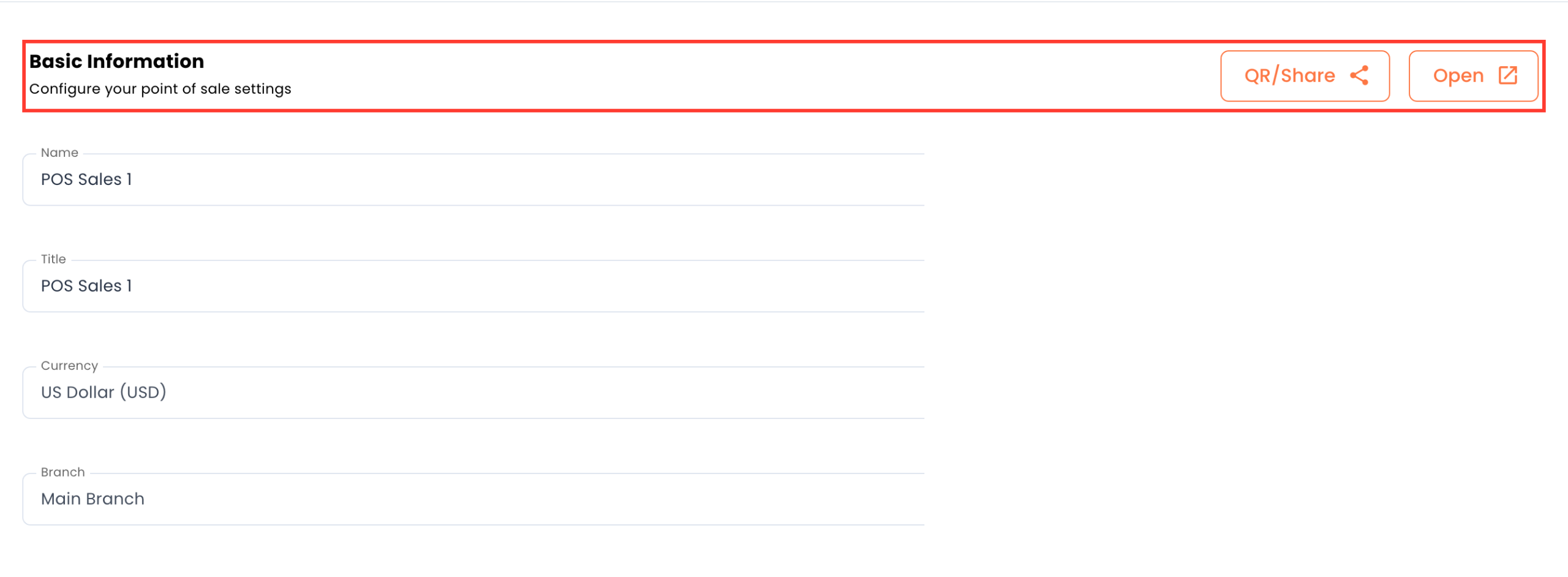
- Open the settings of that terminal. The screen title is Update Point of Sale.
- Under Basic Information the line is Configure your point of sale settings. The fields are App Key, Name, Title, Currency and Branch. The buttons on that card are QR/Share and Open.
- The currency field shows US Dollar (USD). The branch field shows Main Branch.
- Name is for you. Title is what the customer sees, so use the shop name.
- You do not need to copy the App Key for this task.
The advanced tabs
Advanced Options says Configure notifications and payment methods. The tabs are General, Tips, KYC Data, Enable NFC Payment and QR Code Device.
- General lists Email Notifications, Telegram Device Notifications and IOT Device Notifications, then Payment methods with the line Choose which payment methods this accepts.
- Tips has the switch Enable tips.
- KYC Data has the switch Requires KYC Data. The fields a customer would then see were not part of this check.
- Enable NFC Payment is set on each point of sale. The text under the switch mentions payment cards and mobile devices; the switch reads Boltcards only. The QR or NFC article has the details.
- QR Code Device has QR Code Type, Image settings, a field labeled Lightning Address, and the buttons Update QR Information, Open and Print.
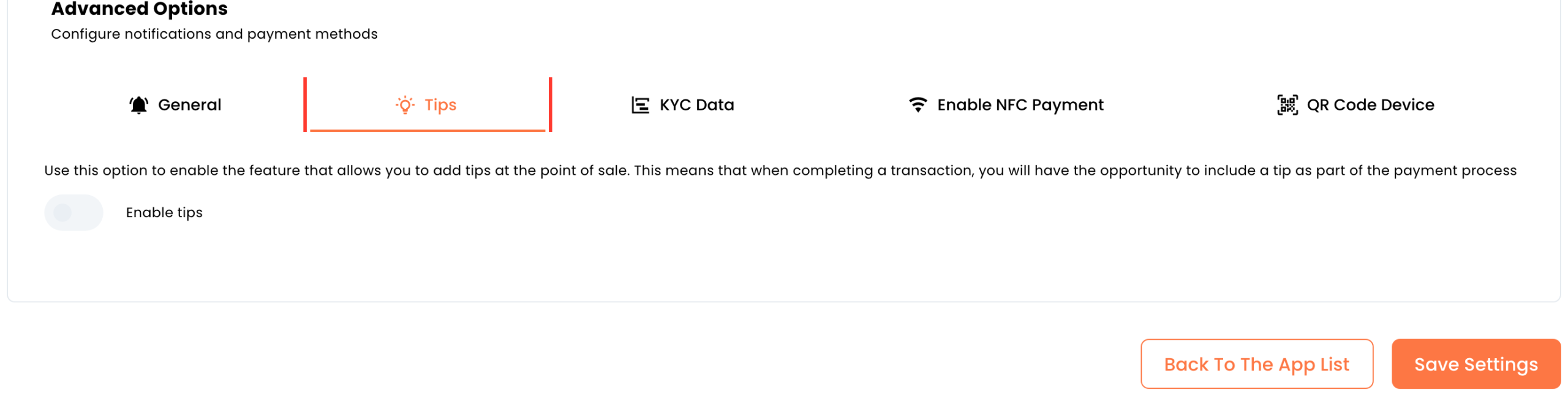
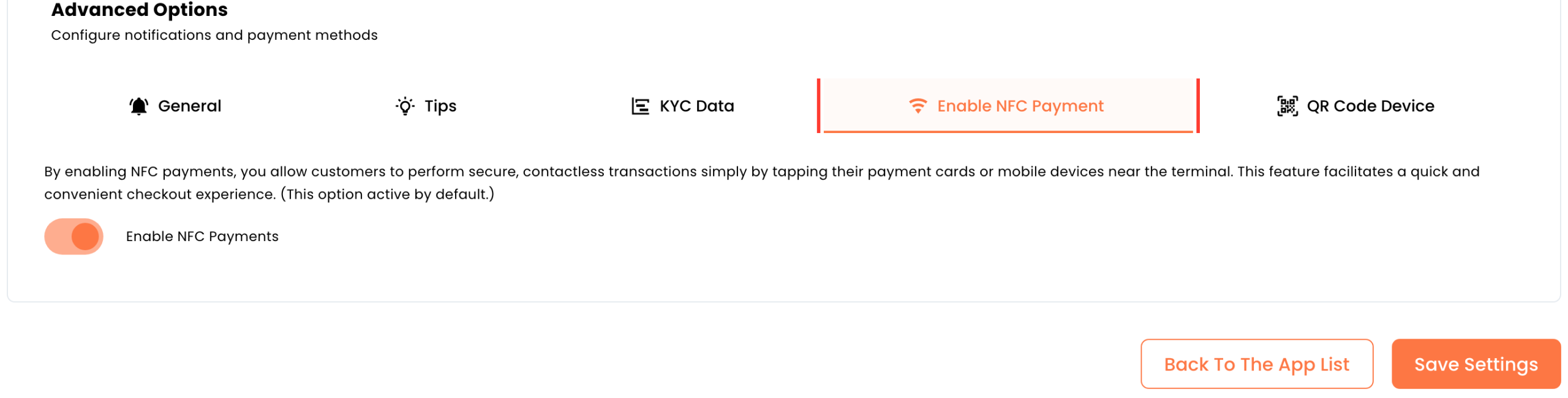
When the fields look right, press Save Settings. Back To The App List returns to Payment Terminals. This pass did not press Save, so there is no confirmation message to quote.
What you should see
The terminal stays on the list under its branch. Open shows the payment screen. QR/Share is the other way to hand that screen to someone.
If something fails
| What you see | What it means | What to do |
|---|---|---|
| Upgrade To Add Another | The plan notice says this plan includes 1 point of sale, and one already exists. | Use the terminal you have, or press that button if you want another. |
| The NFC paragraph talks about cards and phones. | The switch reads Boltcards only. | Follow the QR or NFC article. |
| You need a wallet before the first real charge. | The point of sale sends the bitcoin payment to the wallet you connected. | Connect the wallet first. |
Questions
Where do I create the first one? On this screen the row already exists. Open takes you to the payment screen. The first-charge article walks that screen.
Can I pick another currency here? The field shows US Dollar (USD). The list behind it was not opened in this check.
Do I press Save? The button is Save Settings. This check stopped on the button.