Change or disconnect your wallet
Change or disconnect your wallet
Open Connect Wallet. The page title is Connect your wallet. What you can do depends on the number of wallets on the store. With one wallet, the menu is short. A second wallet unlocks the rest.
Applies to
- The Merchant Dashboard on the web.
- A store with at least one wallet already connected.
- You, at the counter or at a desk. This is not a customer screen.
Before you start
- You already connected a wallet.
- If you want a second one, the value that wallet app shows you for connecting.
One wallet
- Press Connect Wallet in the top bar, or open the connect page.
- On the connected card, open the ⋮ menu. With a single wallet the entries are Copy address and Modify. Set as default and Deactivate are not in that menu.
- Modify opens the form with the current value. The buttons are Delete and Reconnect. The line under the buttons refers to Continue. The button itself says Reconnect.
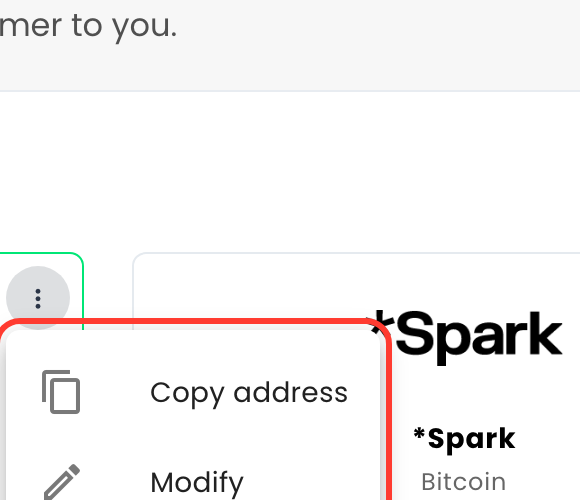
If the new value is rejected, the screen says That does not look like a valid credential for this wallet. Copy it again from your wallet app and retry. The value already saved stays as it was.
A second wallet
- Connect another wallet from the catalog, the same way as the first one.
- When it connects, the screen says Your account was successfully linked, with Close.
- On a wallet that is not the default, the ⋮ menu is Set as default, Deactivate, Copy address and Modify.

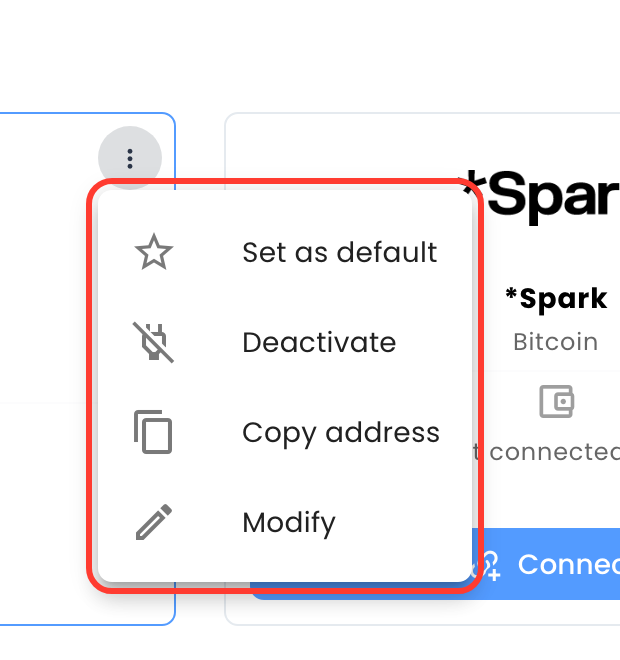
Set as default does not ask you to confirm. The screen says Default payment method has been updated. The Default badge moves to that card.
Deactivate does not ask you to confirm either. The screen says Payment method is now disabled for this store. The card shows Inactive. Its menu becomes Set as default, Activate, Copy address and Modify. Activate is how you turn that card back on.

Remove a second wallet
- On that wallet, open Modify and press Delete.
- The dialog says Are you sure? and This action cannot be undone. It will permanently delete. The buttons are Cancel and Delete.
- After Delete on a second wallet, the card returns to Not connected yet with a Connect button. The screen also says Lightning Address has been disconnected. when that was the wallet removed.
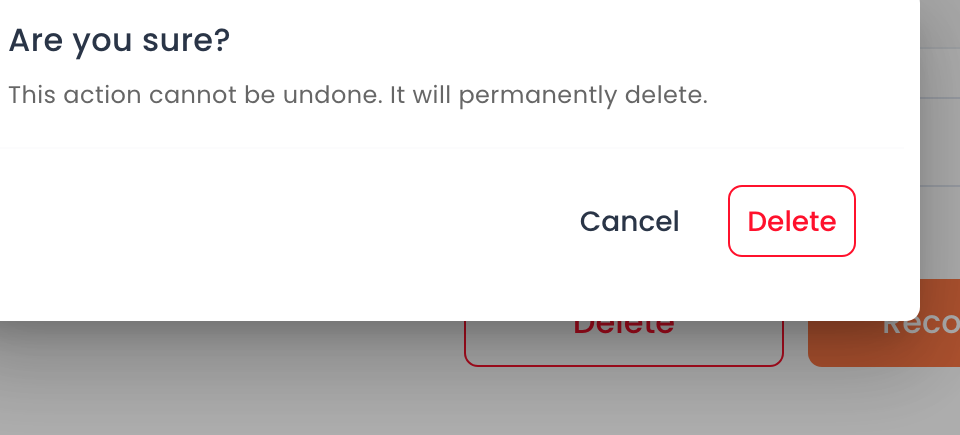
This pass used Delete on a second wallet. It did not use Delete on a store that had only one wallet, so that case is not described here.
What you should see
The wallet you kept shows Default and Active. A removed second wallet shows Not connected yet. A deactivated one shows Inactive and can be activated again from the same menu.
If something fails
| What you see | What it means | What to do |
|---|---|---|
| The menu has only Copy address and Modify. | The store has one connected wallet. | Connect a second wallet. Set as default and Deactivate appear on the one that is not the default. |
| That does not look like a valid credential for this wallet. Copy it again from your wallet app and retry. | The new value was rejected. The saved one did not change. | Copy the value again from the wallet app and use Reconnect. |
| Lightning Address cannot be selected. | On the production screen that option can be unavailable. | Use the connect article, and pick a wallet the catalog opens. |
Questions
Which action asks first? Set as default and Deactivate apply when you press them. Only Delete opens Are you sure?
Does Modify rename the button? The button is Reconnect. The sentence under it still says Continue.
Can I deactivate the only wallet from the menu? That menu does not show Deactivate. Delete is inside Modify. This check did not press it on the only wallet.