Choose how the tiankii POS prints
Choose how the tiankii POS prints
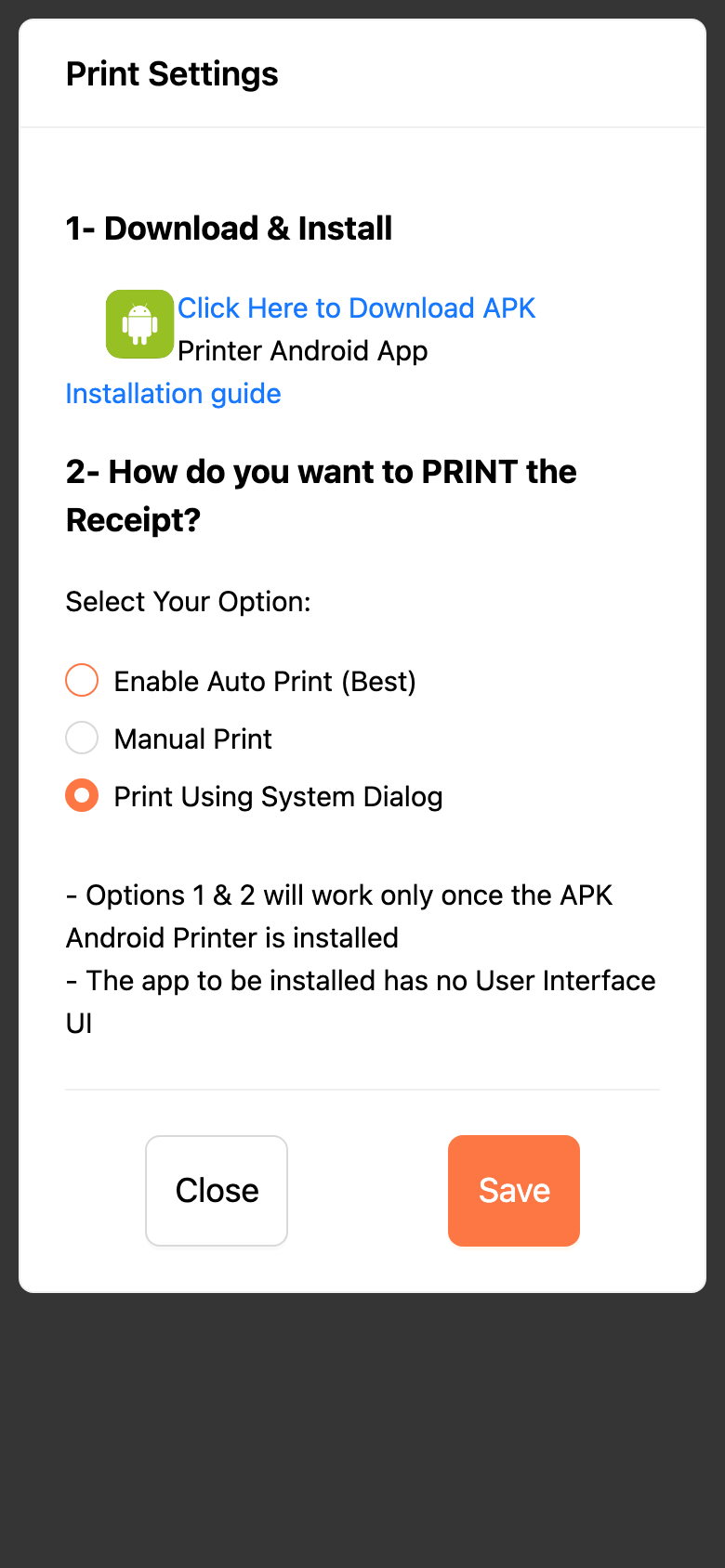
On the tiankii POS, Print Settings is where you download the Android printer app and choose how a receipt is printed. This check did not open a completed charge, so it does not show a Print button and it does not describe the paper.
Applies to
- The tiankii POS.
- A person who can open the POS menu.
- The POS screen this check used. It does not tie Print Settings to a plan.
Before you start
- The tiankii POS is open.
- You can reach the side menu of the POS.
Open Print Settings
- Open the POS menu and press Print Settings.
- The screen title is Print Settings.

Download the app and choose an option
- Section 1- Download & Install has Click Here to Download APK, the line Printer Android App, and Installation guide.
- The installation guide opens the article linked below. This guide does not repeat those install steps.
- Section 2- How do you want to PRINT the Receipt? says Select Your Option:. The options are Enable Auto Print (Best), Manual Print, and Print Using System Dialog.
- The screen says Options 1 & 2 will work only once the APK Android Printer is installed.
- The screen says The app to be installed has no User Interface UI.
- The buttons are Close and Save. This check did not press Save, so it does not describe the result of that button.
On a pending charge, this check did not see a Print button. The completed-charge screen was not opened. Use Print Settings for the choice. Do not look here for a picture of a printed receipt.
What you should see
Print Settings shows the download block and the three options. One option can already be selected when you open the screen. Close leaves without the Save this check did not press.
If something fails
| What you see | What it means | What to do |
|---|---|---|
| There is no Print button on a pending charge. | This check opened a pending charge and Print was not on it. | Set the option in Print Settings. The completed charge was not part of this check. |
| Auto print or manual print does nothing. | The screen says options 1 and 2 work only once the APK Android Printer is installed. | Use Click Here to Download APK, then the installation guide. |
| Print Using System Dialog is the third option. | The screen lists it apart from options 1 and 2. | The note on the screen names options 1 and 2 as the ones that need the APK. This check did not press Save. |
Questions
Where is the printed receipt? It was not part of this check. Print Settings is the screen that was opened.
Does the printer app have its own screens? The POS says the app to be installed has no User Interface UI.
Which option was already selected? This check saw a selection on the screen. It did not press Save, so it does not say that the selection was stored.