Create and edit a customer
Create and edit a customer
Customers stores a name, an email, a phone number, and an optional address. The list also has Request Money. This check did not open that screen, so the request itself is not described here.
These are your customers' personal details. Store only what you need to charge them.
Applies to
- The Merchant Dashboard on the web.
- A person who can open Customers.
- A desktop browser. On the Freemium store in this check, Customers had no plan lock.
Before you start
- You are signed in at pay.tiankii.com.
- You have the name of the customer. Email and phone are on the form.
Add a customer
- Open Customers in the side menu.
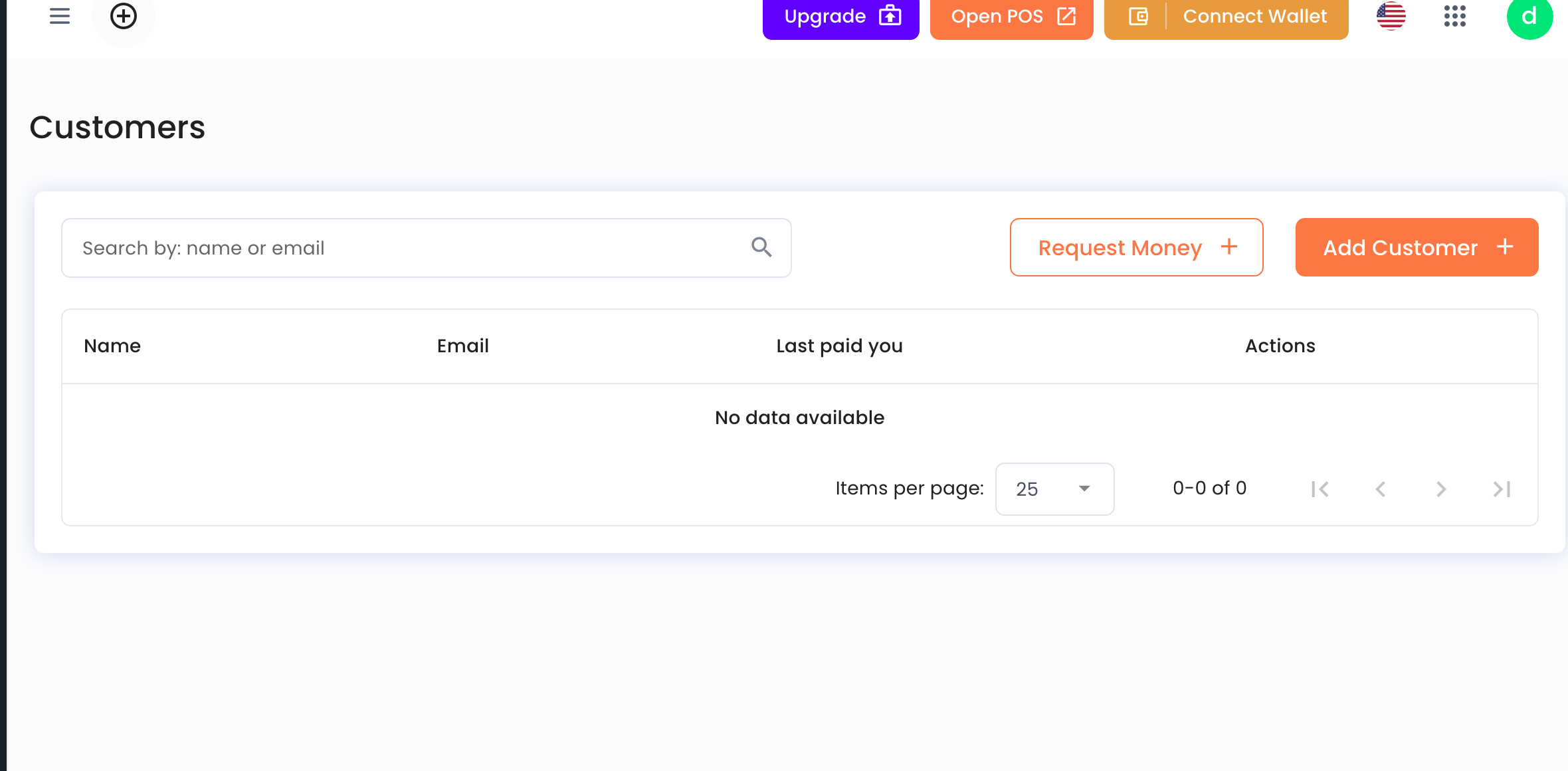
- The page has Search by: name or email, Request Money, and Add Customer.
- The columns are Name, Email, Last paid you, and Actions. An empty list says No data available.
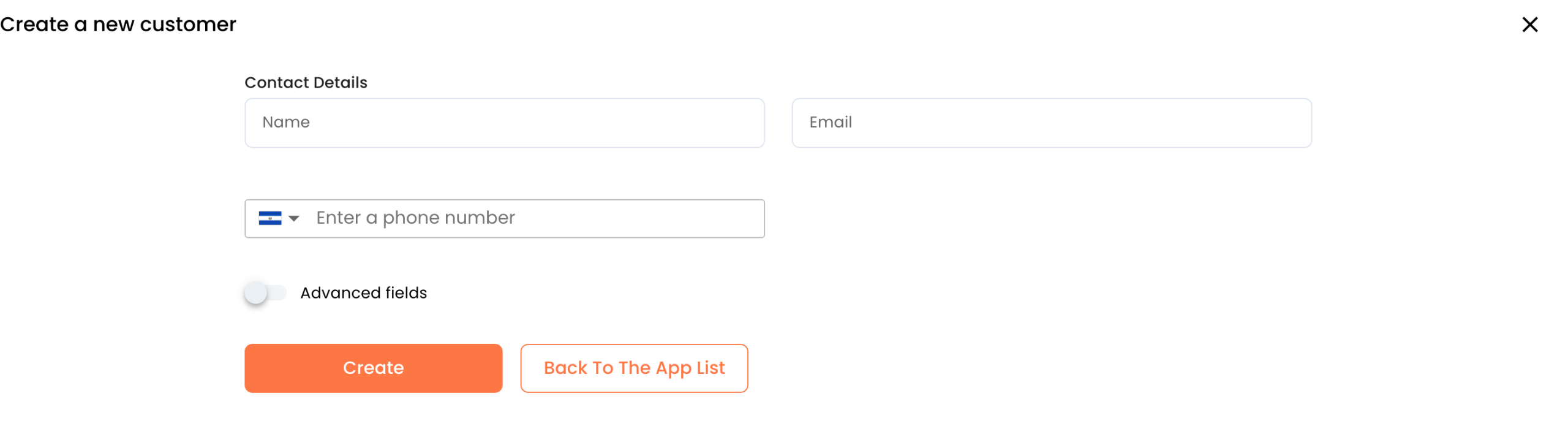
- Press Add Customer. The title is Create a new customer. Under Contact Details the fields are Name, Email, and a phone field that says Enter a phone number. The phone field has a country flag.
- Advanced fields opens the rest of the form. Create saves. Back To The App List returns to Customers.
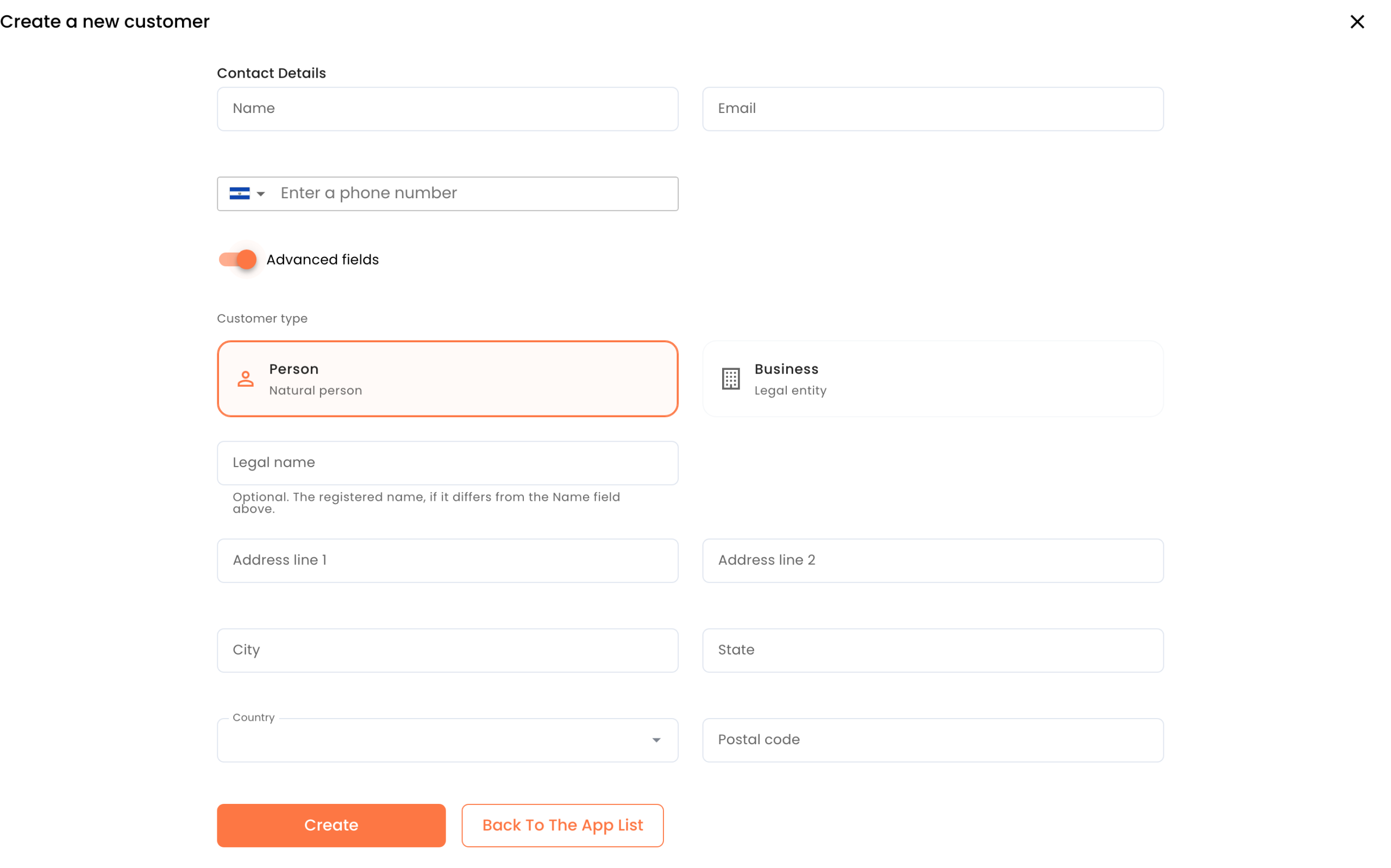
Under Advanced fields, Customer type has two choices. Person says Natural person. Business says Legal entity. Legal name says Optional. The registered name, if it differs from the Name field above. The address fields are Address line 1, Address line 2, City, State, Country, and Postal code.
Press Create. The customer then shows on the Customers list. This check does not describe a separate confirmation message.
Open and edit
- On the row, press View. The page is Customer Details. It shows Name, Email, Customer Since, and Address.
- Recent Activity is on the same page. In this check it said No data available. Back returns to the list.
- The row menu has Edit, Request Money, and Delete.
- Edit opens Edit customer, with the same contact fields. The button is Save Changes. This check did not press Save Changes, so it does not describe the result of that button.
- Request Money is on the list and in the menu. This check did not open it.
- Delete is in the menu. This check did not press it, so the result is not described here.
What you should see
The customer is a row on Customers. View opens Customer Details. Edit opens the same contact fields you used to create the row.
If something fails
| What you see | What it means | What to do |
|---|---|---|
| No data available | The list has no customers, or Recent Activity has no rows. | To add a person, press Add Customer. |
| Search shows nothing. | The text does not match a name or an email on the list. | Clear Search by: name or email and look at the full list. |
| Request Money is where you expected a form. | The button is there. This check stopped before the next screen. | Use the button on the list or in the customer menu. The steps after it are not in this guide. |
Questions
Is the phone required? The form shows the field. This check does not say which fields Create rejects when they are empty.
What does Last paid you mean? It is a column on the list. This check did not open a paid row, so it does not describe the value.
Can I edit the address later? Edit customer has Advanced fields, including the address. This check did not press Save Changes.