Create, revoke, and delete an API key
Create, revoke, and delete an API key
Developer Space is where you create a key, revoke it, and delete it. The secret is shown once. Copy it before you leave that screen. This guide does not say whether a key applies to one store or to every store on the account.
Applies to
- The Merchant Dashboard on the web.
- A person who can open Store Settings.
- A desktop browser. The Freemium store in this check showed no plan lock.
Before you start
- You are signed in at pay.tiankii.com.
- You have a place ready for the secret. The screen shows it once.
Open Developer Space
- Open Settings, then Store Settings, then Developer Space.
- Credentials says Identifiers you need to authenticate your server-side integrations. Store ID says Identifies your store in every API request. App ID says Select an app to get the identifier used by app-scoped endpoints. You pick the app with Select app.
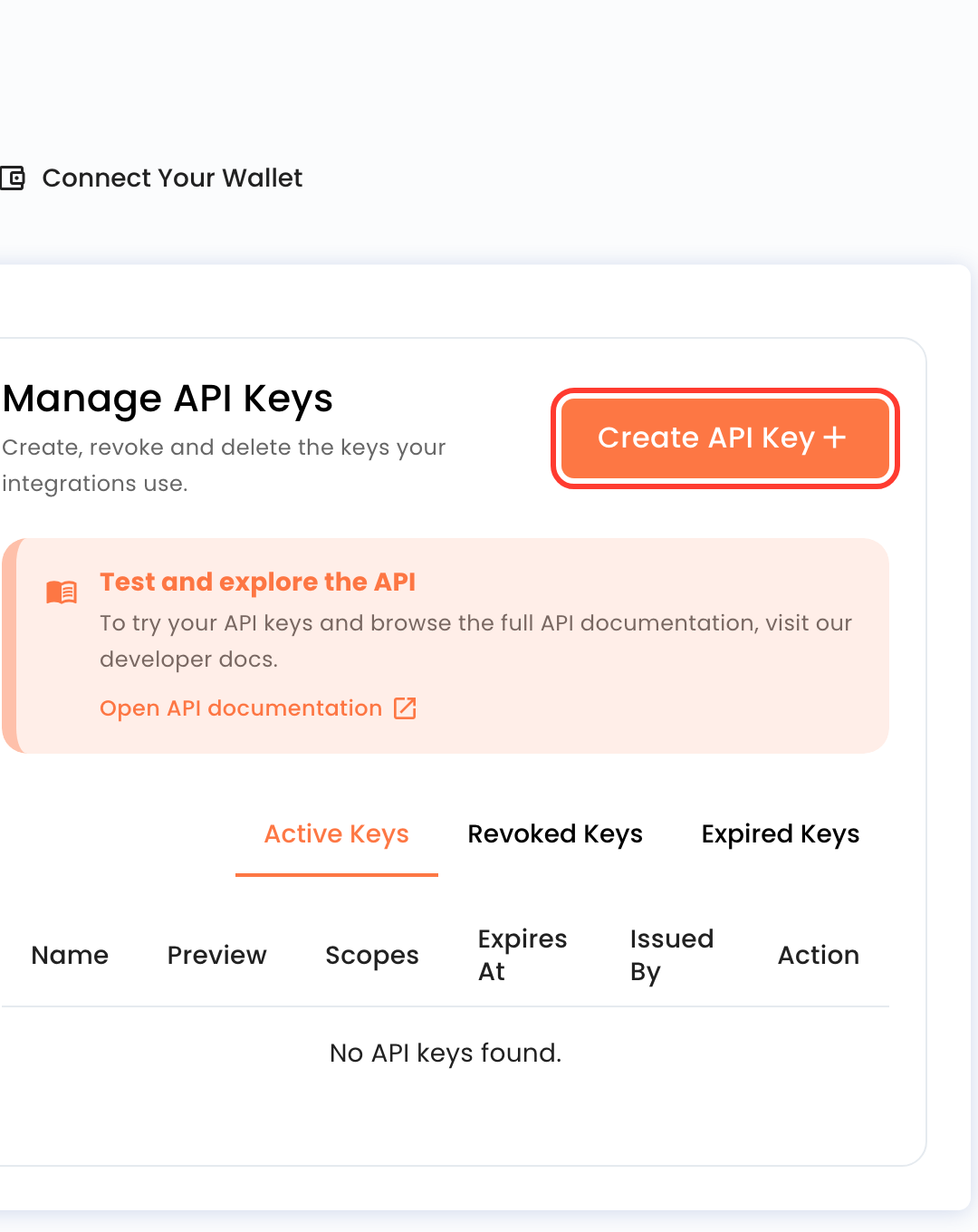
- Manage API Keys says Create, revoke and delete the keys your integrations use. The note Test and explore the API links to Open API documentation.
- The tabs are Active Keys, Revoked Keys, and Expired Keys. An empty tab says No API keys found.
Create a key
- Press Create API Key. The form title is Create API Key.
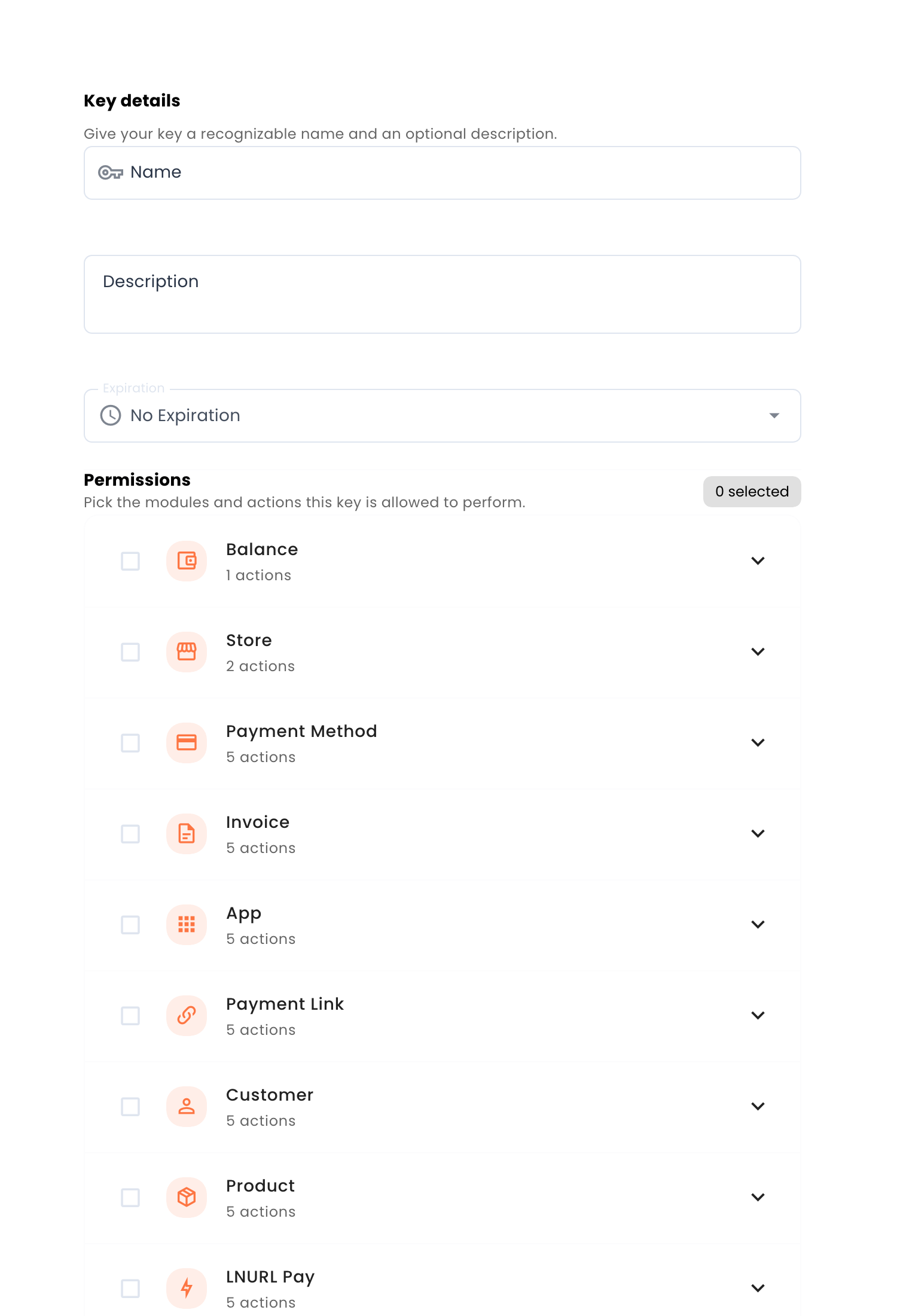
- Key details says Give your key a recognizable name and an optional description. The fields are Name and Description.
- Expiration can be No Expiration or a date. This check used No Expiration.
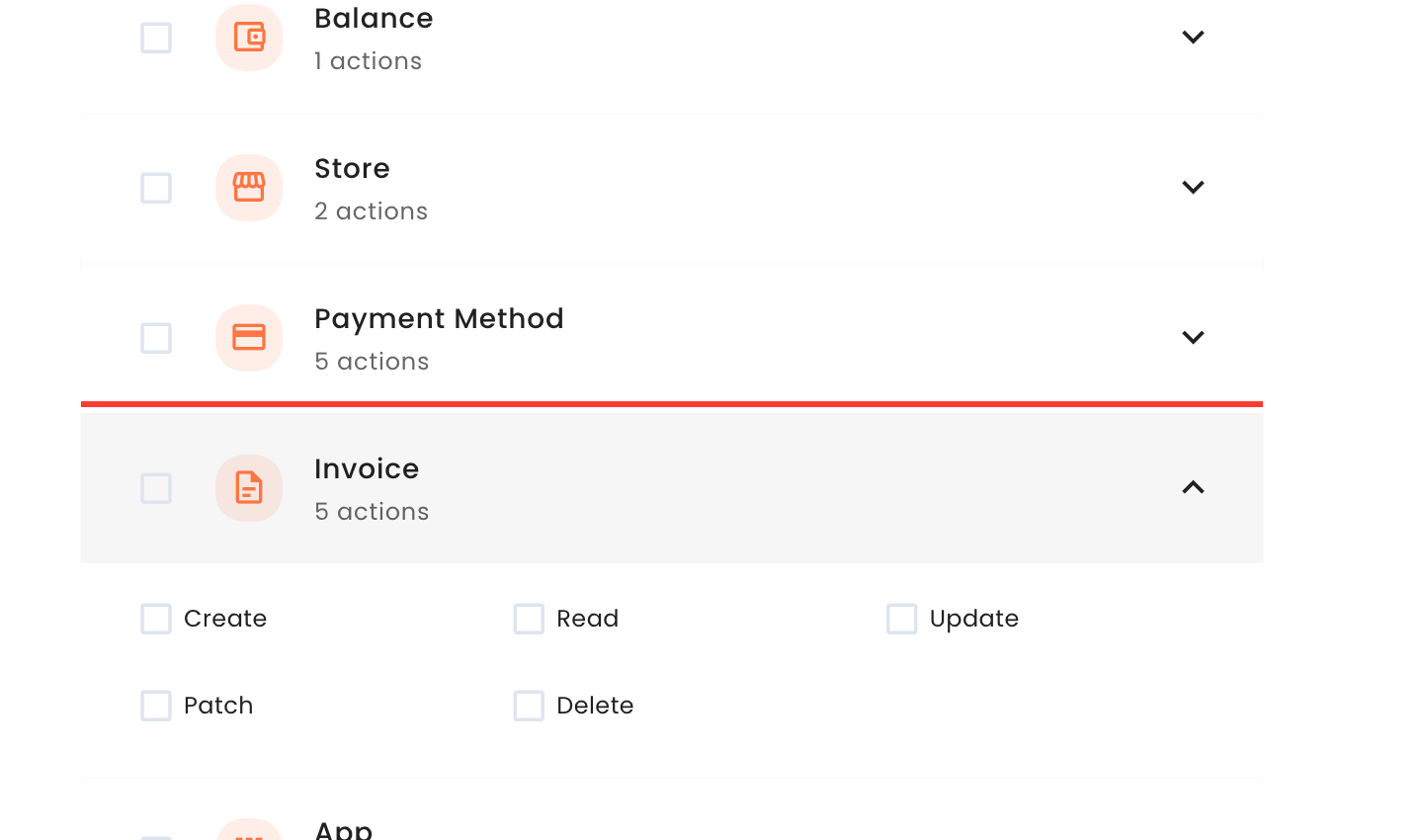
- Permissions says Pick the modules and actions this key is allowed to perform. The modules are Balance, Store, Payment Method, Invoice, App, Payment Link, Customer, Product, and LNURL Pay. Balance says 1 action and Store says 2. The other seven say 5 actions. This check opened Invoice and saw Create, Read, Update, Patch, and Delete. Treat the secret like a password. Anyone who has it can do what its permissions allow, for example on your payment methods if you select that module. Select only the permissions your integration needs, and revoke a key you no longer use.
- Go Back leaves the form. Create API Key submits it.
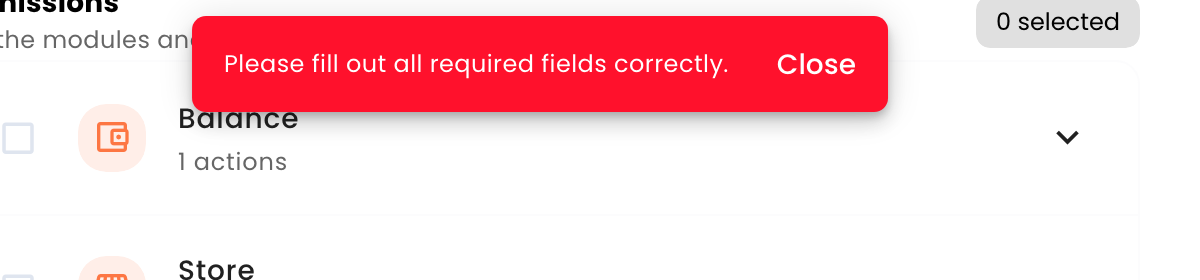
If Name is empty, the form says Name is required, and a notice says Please fill out all required fields correctly, with Close. This check saw that by submitting an empty form. Nothing was created.
When the key is created, the screen says to copy the secret now and that you will not be able to see it again. The button is Copy Secret. Finish stays off until you check I have copied the secret and stored it safely. Close is also on that screen. A line says API Key created successfully. Please copy the secret. The create form and this success screen stay in English when the Dashboard is in Spanish.
After Finish, the key is on Active Keys. The columns are Name, Preview, Scopes, Expires At, Issued By, and Action. Preview shows a prefix, not the secret. For the key created with No Expiration, Expires At showed Never.
Revoke, then delete
- On an active key, the action menu has Revoke and Delete.
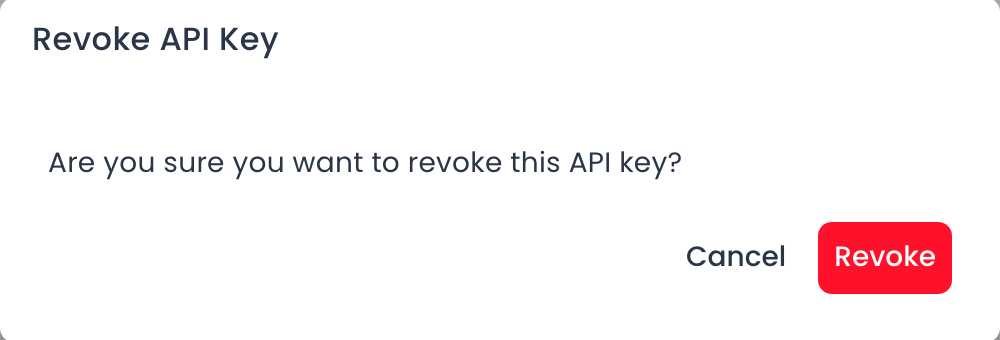
- Revoke opens Revoke API Key and asks Are you sure you want to revoke this API key? The buttons are Cancel and Revoke.
- The key then appears on Revoked Keys. The columns there include Revoked At and Revoked Reason. This check showed the reason client_revocation.
- On a revoked key, Delete removes it at once. This check saw no confirmation dialog. The tab then said No API keys found.
Delete is also on the active-key menu. This check did not use it on an active key, so it does not say whether that asks you to confirm.
What you should see
The new key is on Active Keys. Preview shows a prefix, and Scopes shows the permissions you selected. After Revoke it is on Revoked Keys. After Delete, that tab can say No API keys found.
If something fails
| What you see | What it means | What to do |
|---|---|---|
| Name is required. | The name was empty when Create API Key was pressed. | Type a Name, pick at least one permission, and press Create API Key again. |
| Please fill out all required fields correctly. | The same empty submit. The notice has Close. | Close it, fill Name and a permission, and submit again. |
| The secret is gone. | The screen shows it once. Finish does not bring it back. | If you did not copy it, revoke that key and create another. Use Copy Secret before Finish. |
Questions
Does the key cover one store or the whole account? This guide does not say.
Can I read the secret again from Preview? No. Preview shows a prefix. The full secret was on the create screen only.