Create your account and your store
Create your account and your store
Open pay.tiankii.com/auth/register. You create the Merchant account, confirm a code from your inbox, and then set up the store in three steps, Account, Preferences and Username. The account screens and the store setup are in English.
Applies to
- The Merchant Dashboard on the web, for a new store.
- The person creating that store.
- A desktop browser.
Before you start
- An email inbox you can open.
- The Terms & Conditions and the Privacy Policy. The checkbox links to them, and checking it is required. This guide does not say what the documents contain.
- A store name and a public username. The username screen says the username cannot be changed later.
Create the account
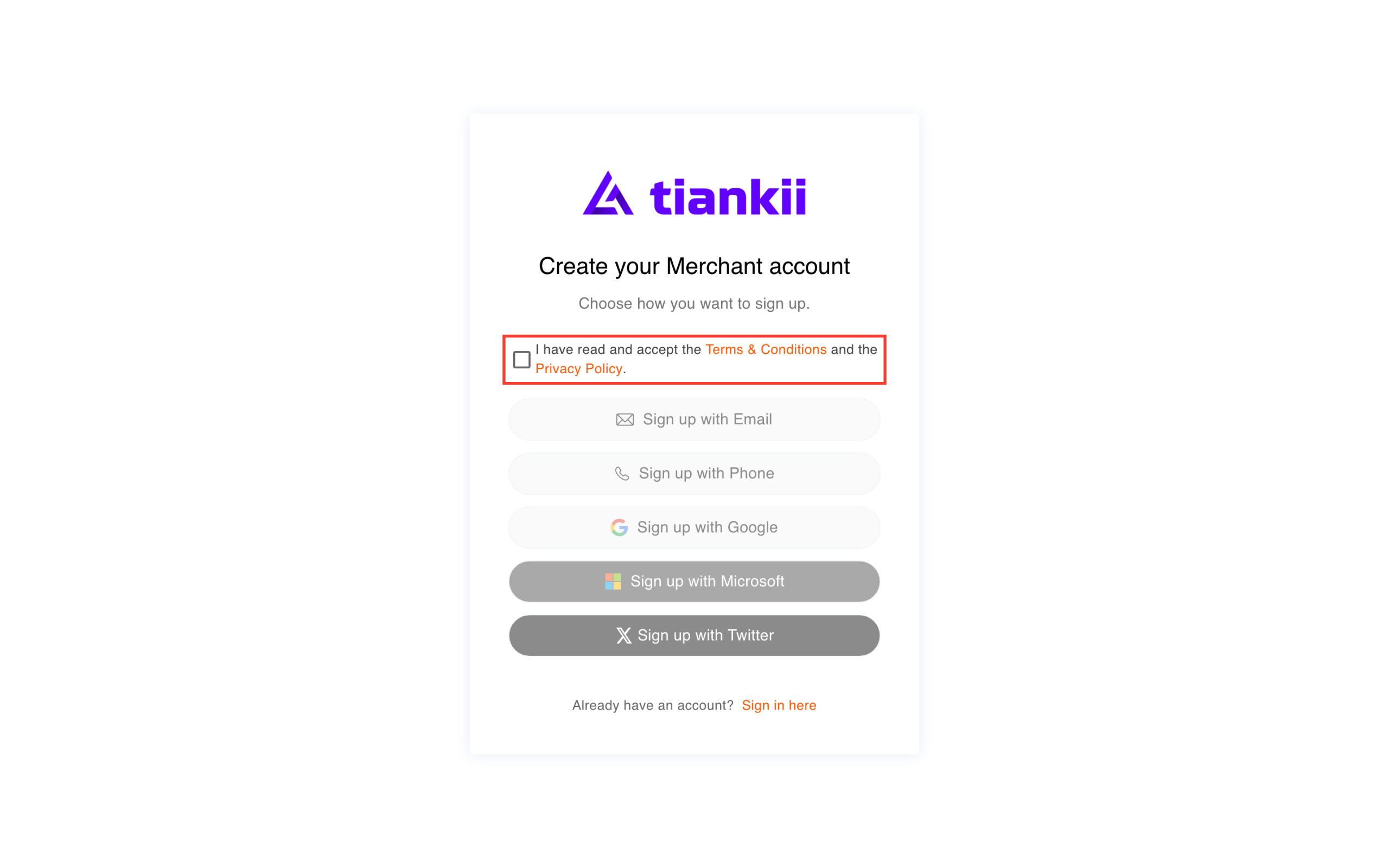
- Open pay.tiankii.com/auth/register. The screen is Create your Merchant account, with Choose how you want to sign up.
- Check I have read and accept the Terms & Conditions and the Privacy Policy. Until you do, these stay dim: Sign up with Email, Sign up with Phone, Sign up with Google, Sign up with Microsoft and Sign up with Twitter.
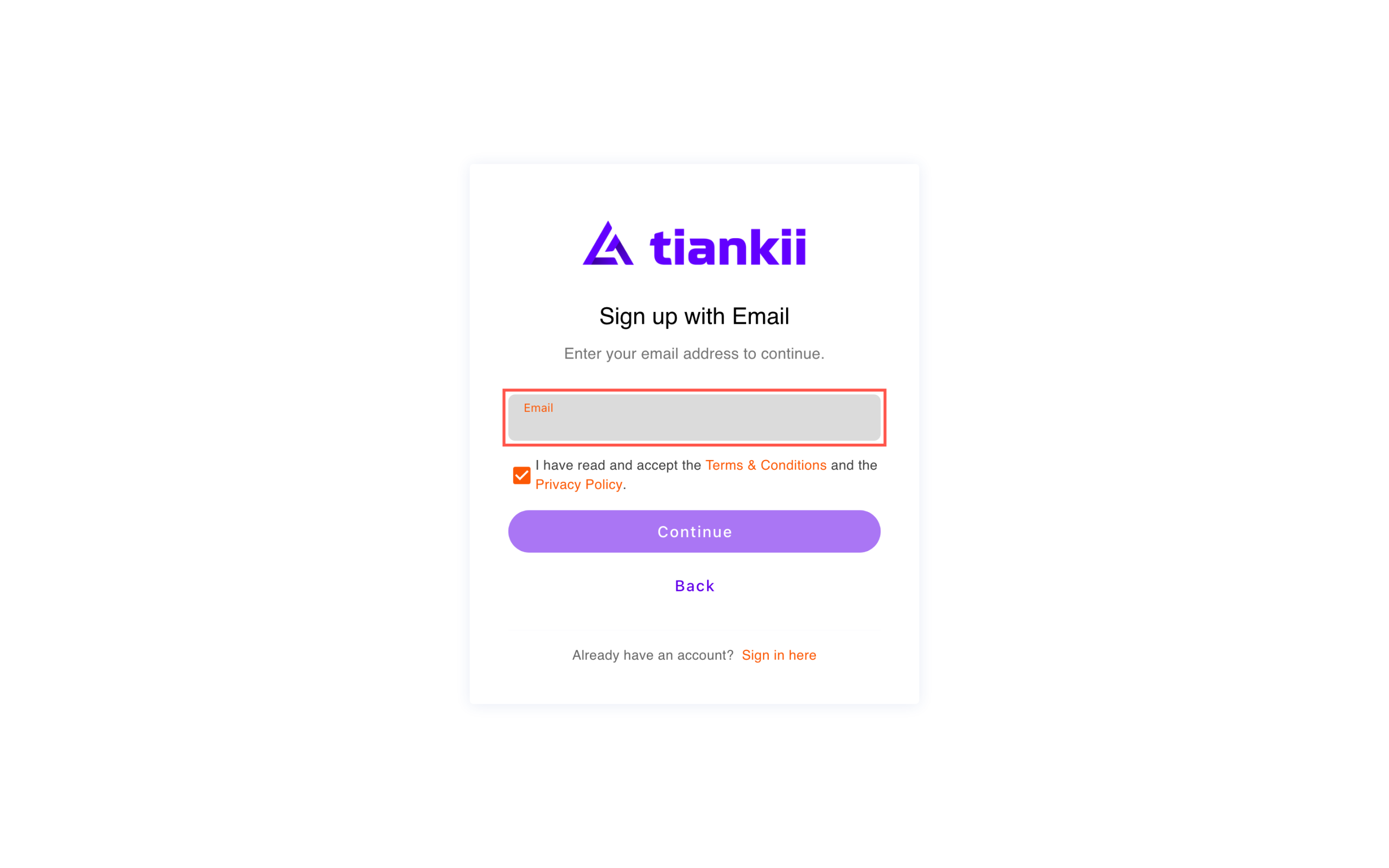
- Press Sign up with Email. The screen says Enter your email address to continue. The same checkbox is here. Type the address and press Continue. Back returns to the list.
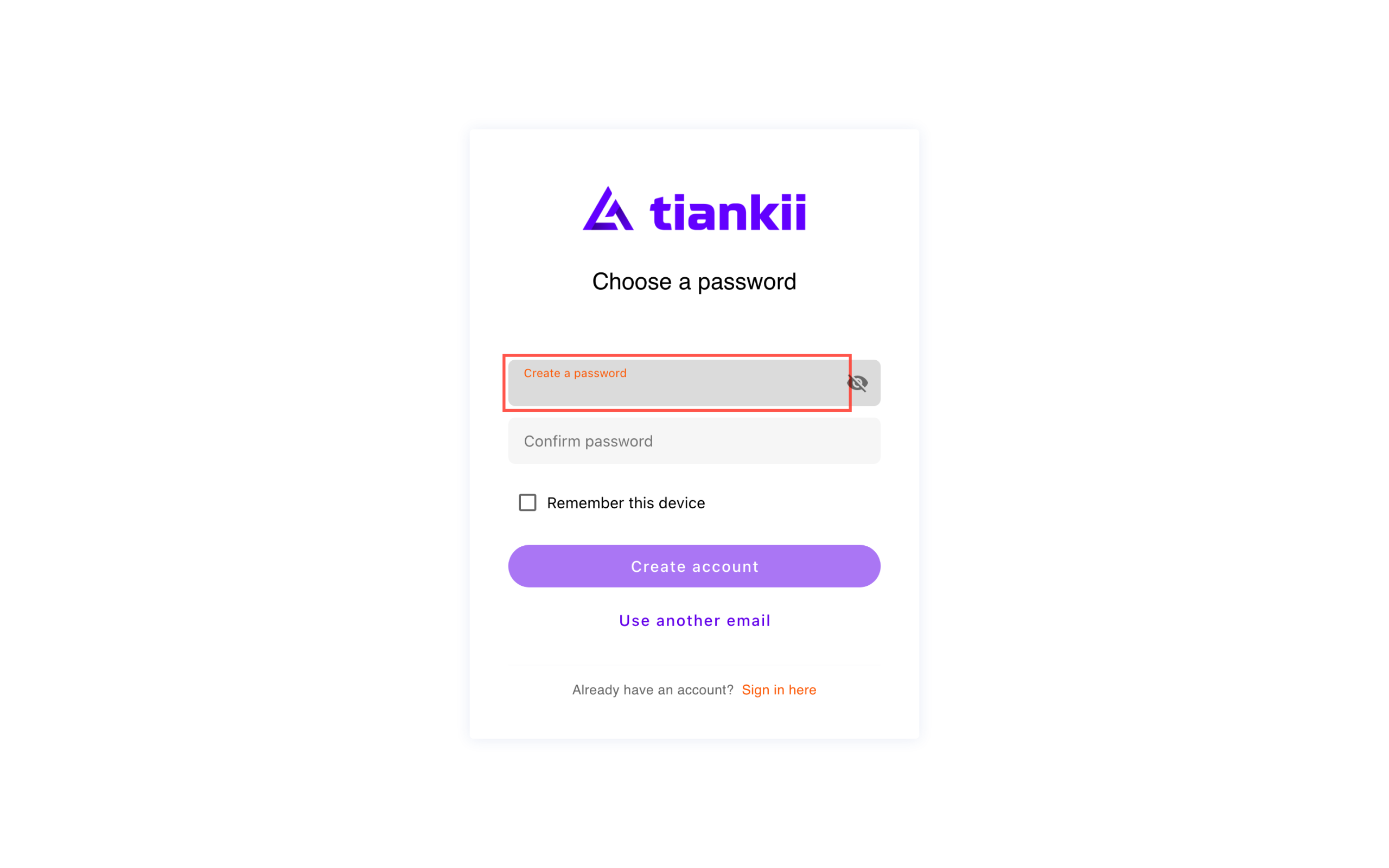
- The next screen is Choose a password. It shows the address, Create a password, Confirm password, Remember this device, Create account and Use another email. Type the password in both fields and press Create account. The picture leaves the address out.
- The next screen is Verify your email. It says a 6-digit code was sent to that address. Type the code from the inbox and press Verify. Use another email goes back. Resend code is on this screen. This guide does not say how long a code lasts, or how many tries it allows.
Already have an account? Sign in here opens sign-in. Phone, Google, Microsoft and Twitter were not part of this check. An address that already has an account still reaches Choose a password. That form was not sent. What Remember this device stores was not part of this check.
Set up the store
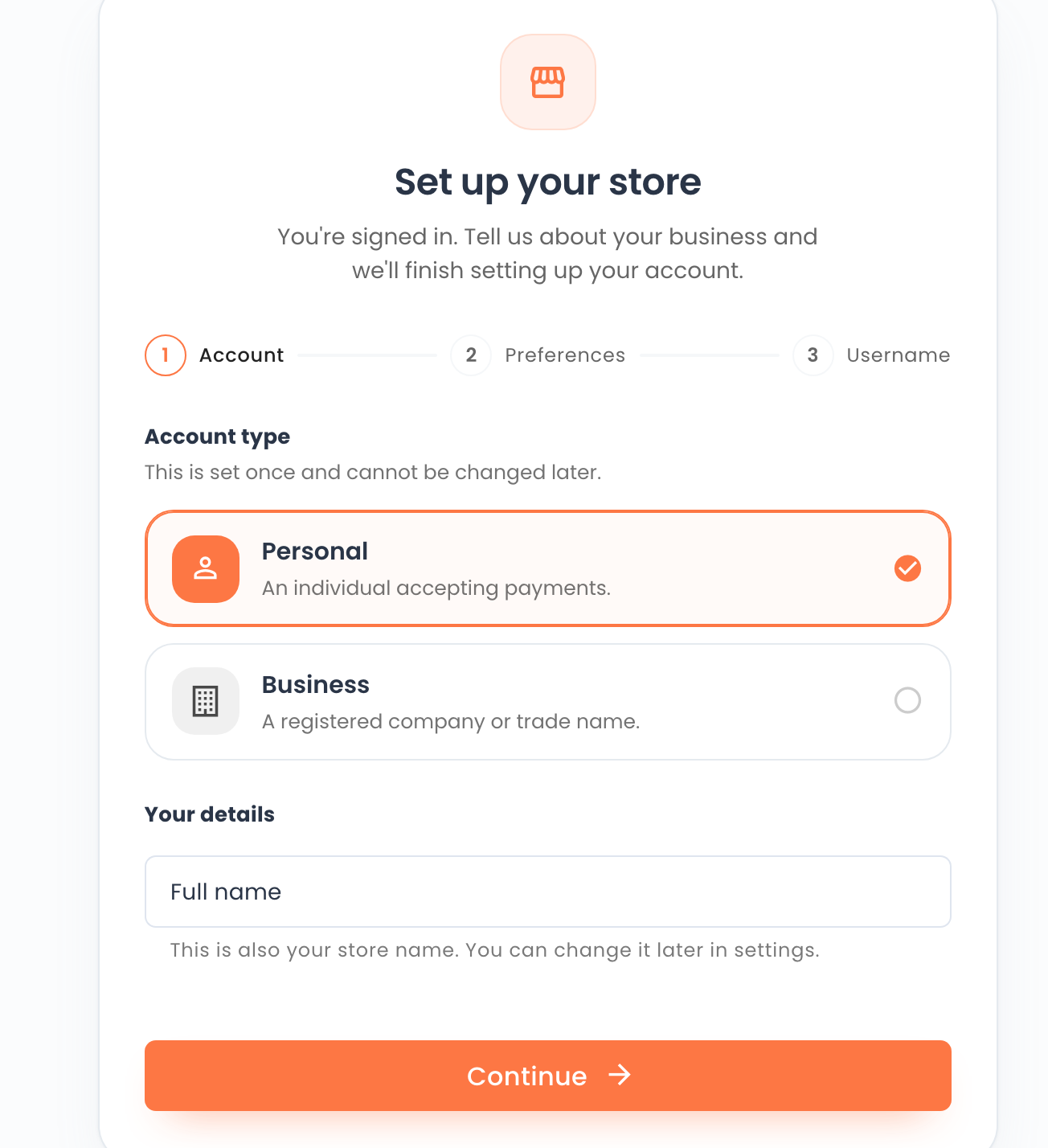
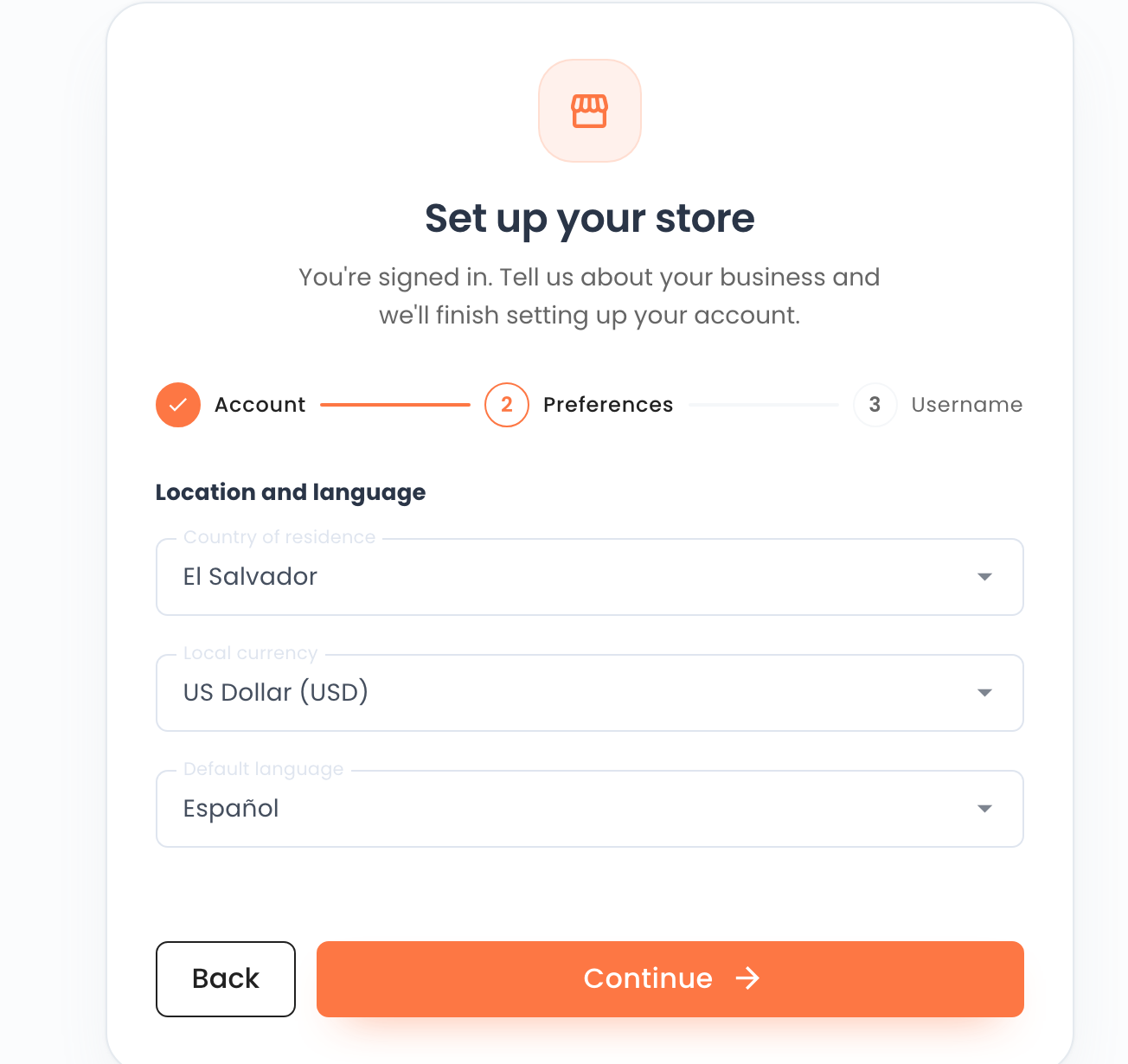
After the code is accepted, the screen is Set up your store, with the steps Account, Preferences and Username.
- Account type says This is set once and cannot be changed later. Personal says An individual accepting payments. Business says A registered company or trade name. Business also shows Company name and Industry. This check stayed on Personal and did not open Industry.
- Under Your details, fill Full name. The line says This is also your store name. You can change it later in settings. Continue with the field empty shows Value is required.
- Press Continue. Location and language has Country of residence, Local currency and Default language. In this check they opened already filled, with El Salvador, US Dollar (USD) and Español. Check each one and change any that is not yours. There is no phone field. Back returns, and Continue goes on.
- Choose your username calls it Your public identifier for payment links and Lightning addresses. The username cannot be changed later. The rule is 3-40 lowercase characters. Letters, digits, dot, underscore or hyphen. A free name is marked available. A taken name was not shown in this check.
- The screen may end with Before creating your store, review and accept these documents. If it does, check I have read and accept: beside Terms & Conditions (v2.0) and Privacy Policy (v1.0), then press Create my store. If it does not, press Create my store. Cancel and sign out was not used.
What you should see
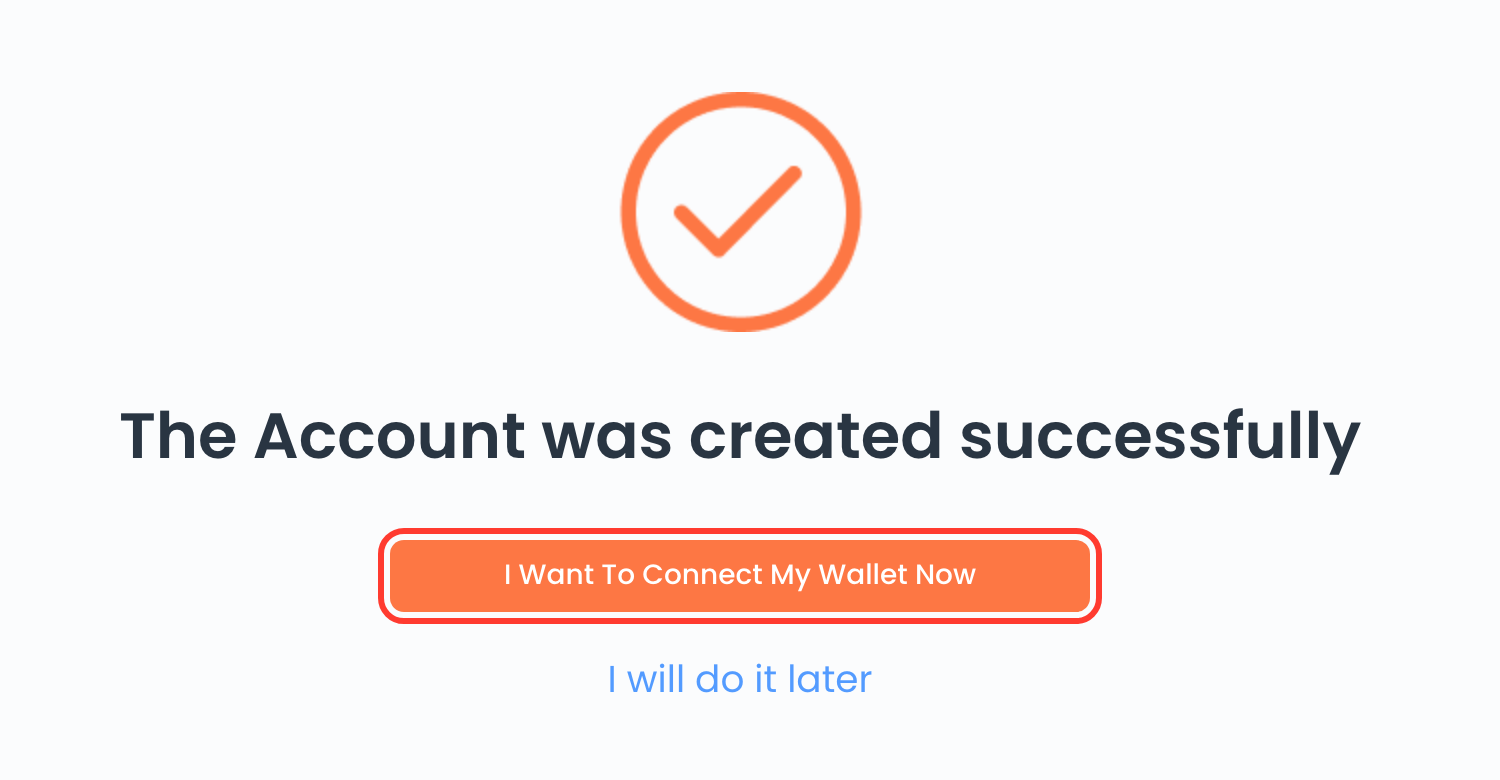
The screen says The Account was created successfully. I Want To Connect My Wallet Now opens Connect your wallet. I will do it later is the other button. This check stopped there, without connecting. Where a bitcoin payment goes, and how to connect, is the wallet guide.
If something fails
| What you see | What it means | What to do |
|---|---|---|
| The sign-up methods look dim. | The terms box is still empty. | Check the box on that screen. |
| Value is required | Full name is empty. | Type the name. |
| Verify your email asks for a code. | The code is in the inbox you typed. | Type it and press Verify. If it does not arrive, press Resend code when it becomes available, and use the newest code. |
Questions
Can I change the account type later? No. Account type says it is set once.
Can I change the username later? No. On Personal, the store name under Full name can be changed later in settings.