Set up My Bitcoin Place
Set up My Bitcoin Place
My Bitcoin Place is the public page of the store. You edit it from Payment Tools, preview it on the same screen, and open the public page. The button Manage Products was disabled in this check, so this guide does not describe it.
Anyone with the link can see this page. It shows the business name, image, category and description you save here, and each contact detail whose Show switch is on. Turn on only what you want to make public.
Applies to
- The Merchant Dashboard on the web.
- A person who can open Payment Tools.
- A desktop browser. On the Freemium store in this check, this screen had no plan lock.
Before you start
- You are signed in at pay.tiankii.com.
- The store already has a point of sale if you want to select one. This check saw the field. It does not say a POS is required to open the page.
Open the form
- Open Payment Tools, then My Bitcoin Place.
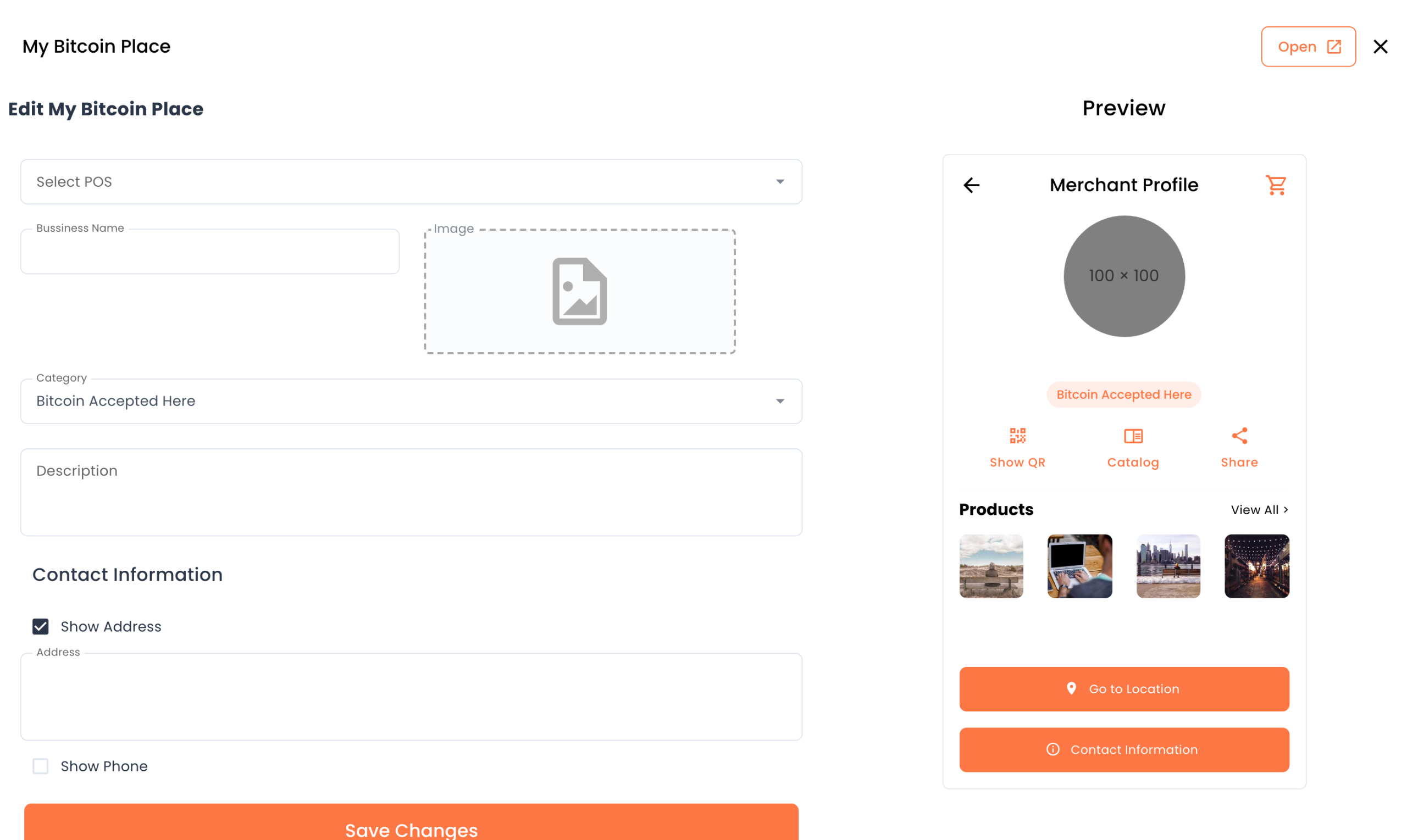
- The page title is My Bitcoin Place. Open is at the top. The form title is Edit My Bitcoin Place. Preview is beside the form.
- Select POS chooses which point of sale the place shows. This check opened the list and did not press Save Changes.
- The name field is labeled Bussiness Name. That is the spelling on the screen. Next to it is an Image area.
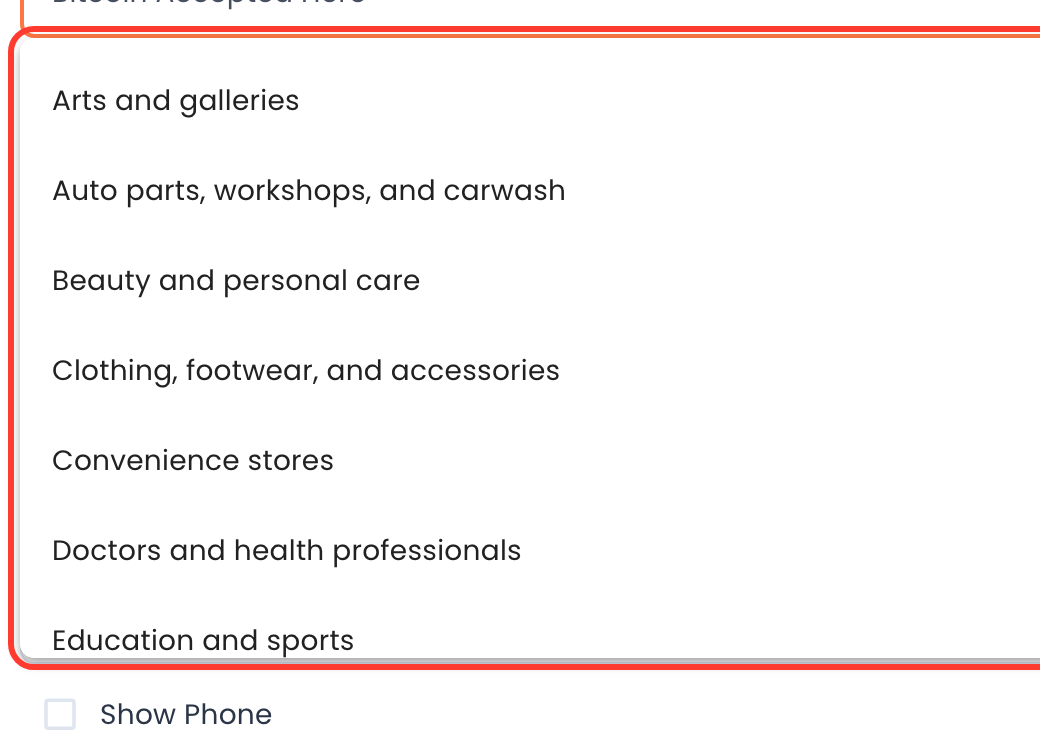
- Category opens a list of business types. This check saw 13 entries, including Arts and galleries, Convenience stores, Electronics and computing, Others, and Professional services. It did not save a change.
- Description is the next field.
Contact information
- The block is Contact Information.
- The switches are Show Address, Show Phone, Show Email, Show WhatsApp, and Show Website.
- Show Address reveals an Address field. This check did not change the saved switches.
- The button at the end is Save Changes. This check did not press it, so it does not describe a new save.
The preview card is titled Merchant Profile. It shows Show QR, Catalog, Share, Products, View All, Go to Location, and Contact Information. The logo circle says 100 × 100. A line on the card says Bitcoin Accepted Here.
Open the public page
- Press Open.
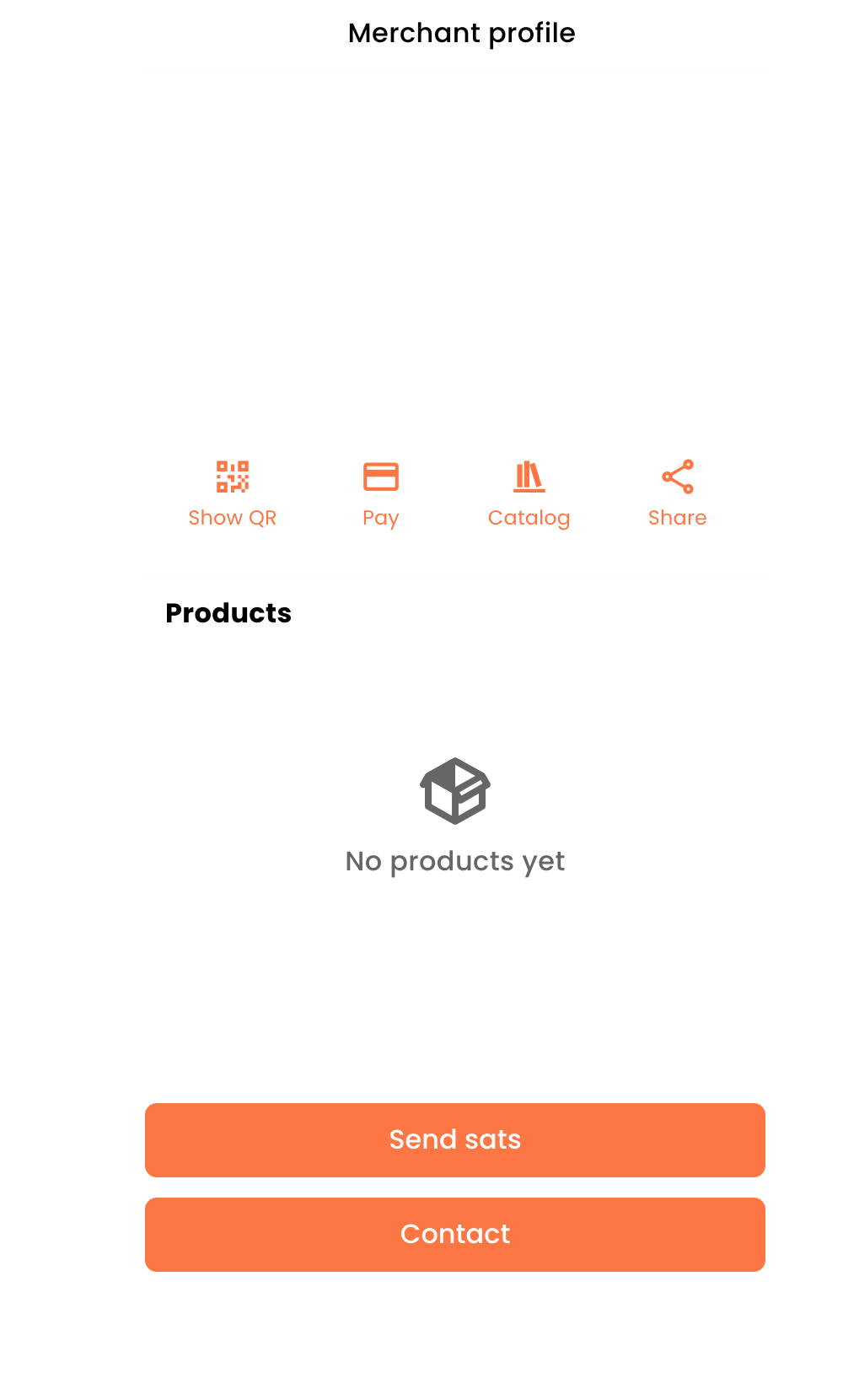
- The public page title is Merchant profile. The actions are Show QR, Pay, Catalog, and Share.
- The products block can say No products yet. Further down, this check saw Send sats and Contact.
- This check did not press those actions, so it does not describe what each one opens.
On a store that did not have a place saved, Open showed Invalid place and The requested place could not be found or is invalid.
What you should see
The form and the preview are on one screen. Open shows the public page that is already saved. This check did not press Save Changes, so the public page is the one the store already had.
If something fails
| What you see | What it means | What to do |
|---|---|---|
| Invalid place | This check saw that text when the store did not have a place saved. | Go back to Edit My Bitcoin Place. This check did not press Save Changes, so it does not describe the save that clears the message. |
| No products yet | The public page has no products in that block. | Manage Products was disabled in this check. This guide does not describe that button. |
| Manage Products does not respond. | The button was disabled on the stores in this check. | Use the rest of the form. Do not follow a steps list for that button. There isn't one here. |
Questions
Why does the name field say Bussiness Name? That is the label on the English screen, including the spelling.
What does Send sats do? The button is on the public page. This check did not press it.
Is Bitcoin Accepted Here a category I pick? It is a line on the preview card. Category is a separate field, and its list is the business types above.